
Today we're going to show you how to remap the buttons on your Chromecast remote with Google TV , so you can assign Disney+, Amazon Prime Video, and other streaming services to launch them with the touch of a button. But this guide goes far beyond simple remapping: we'll also explain how to configure the volume, power, and input buttons to control your TV, soundbar, or AV receiver, how to take advantage of the customizable button included on the latest remotes, and what to do when something isn't working as it should. With a little patience and the right adjustments, your remote will go from being a limited accessory to becoming the control center for your entire living room.

A Chromecast with Google TV is a fantastic service in itself, capable of transforming older TV screens into connected devices where you can install streaming services like Filmin or Disney+, or apps and games for your entertainment. It's one of the most well-rounded accessories Google has released: a small HDMI device that breathes new life into televisions that would otherwise have become obsolete. Its complete operating system, with an app store, voice assistant, and independent profiles, makes it a fully-fledged multimedia hub.
Quickly access settings
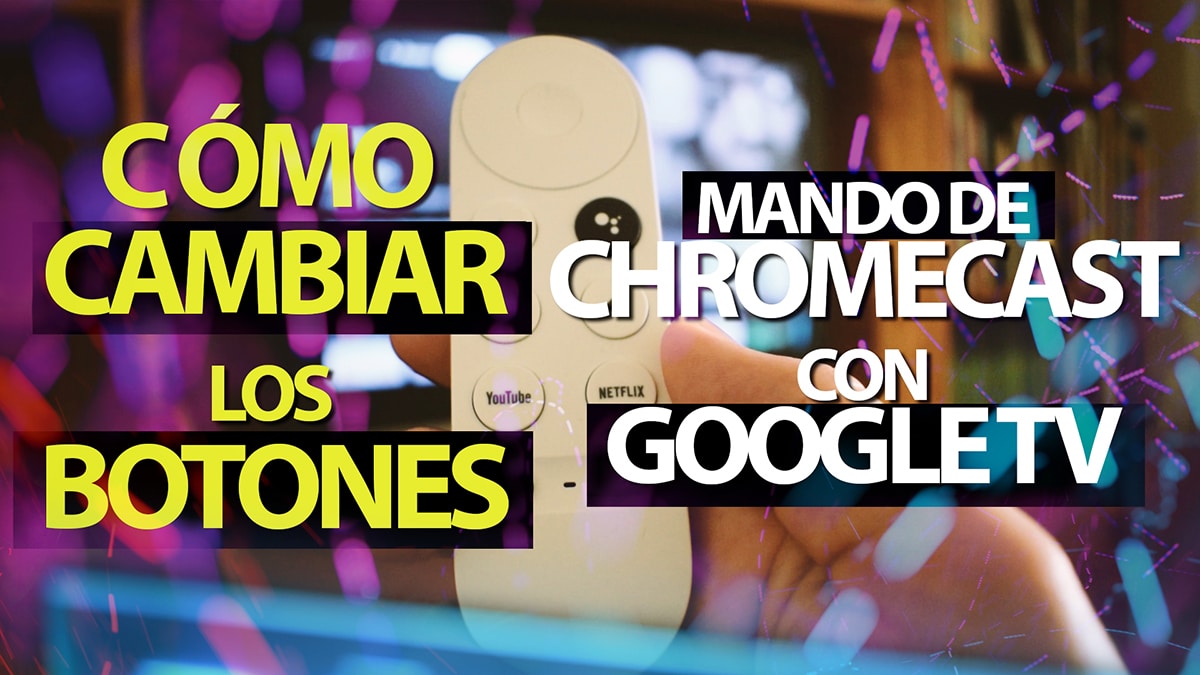
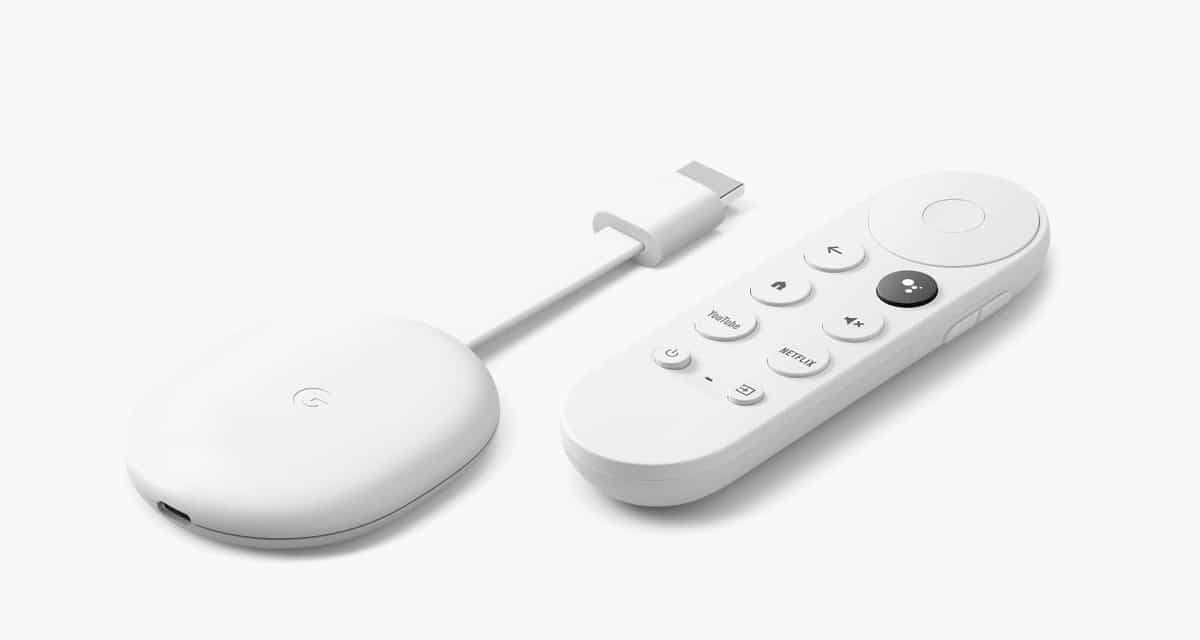
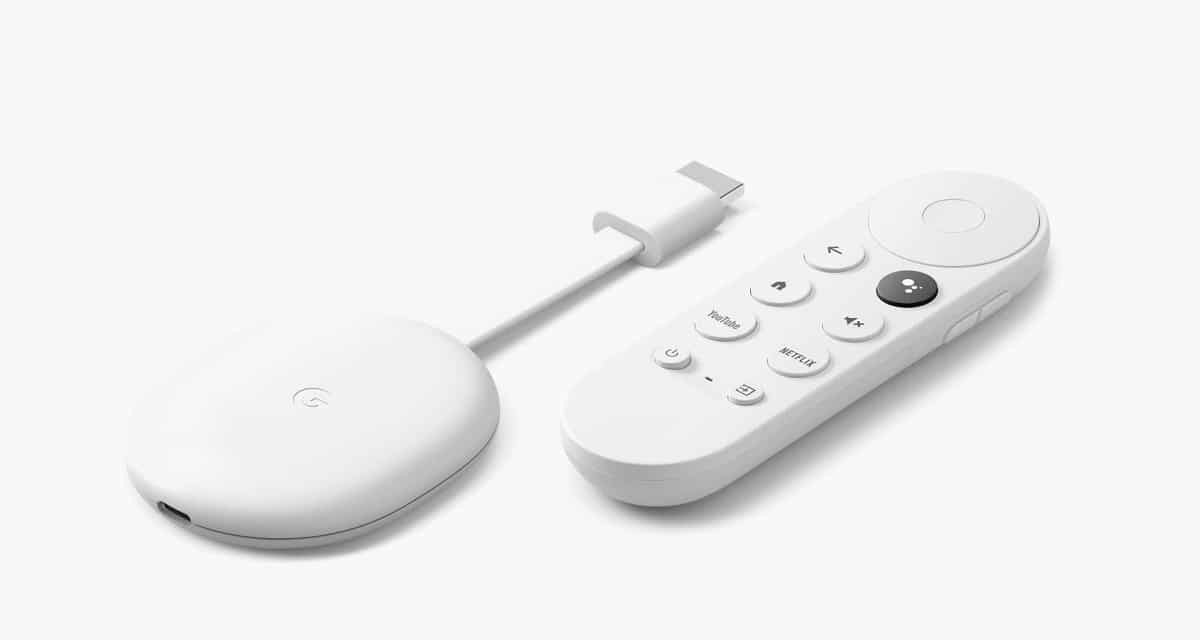
The remote control that comes with this device has a minimalist design, with few but well-chosen buttons: they control the system and some TV settings, such as volume, mute, power, and input source selection. The problem is that two of these buttons are pre-assigned to YouTube and Netflix, a feature that stems from commercial agreements but is completely useless to many users. If you don't have Netflix, that button is wasted. And that's where customization comes in.
The first thing you need to do is go to the settings . This is essential if you need to remap the buttons, and therefore completely change them, although it's a good idea to leave some as default, like the power button. Accessing these settings is very simple and should only take a few seconds.
Press and hold the home button for at least two seconds. This will bring up the setup menu, an important starting point, as it's what you'll ultimately be interested in. This menu is quite comprehensive, and you won't need much if you want to modify settings on your Chromecast remote for your TV.
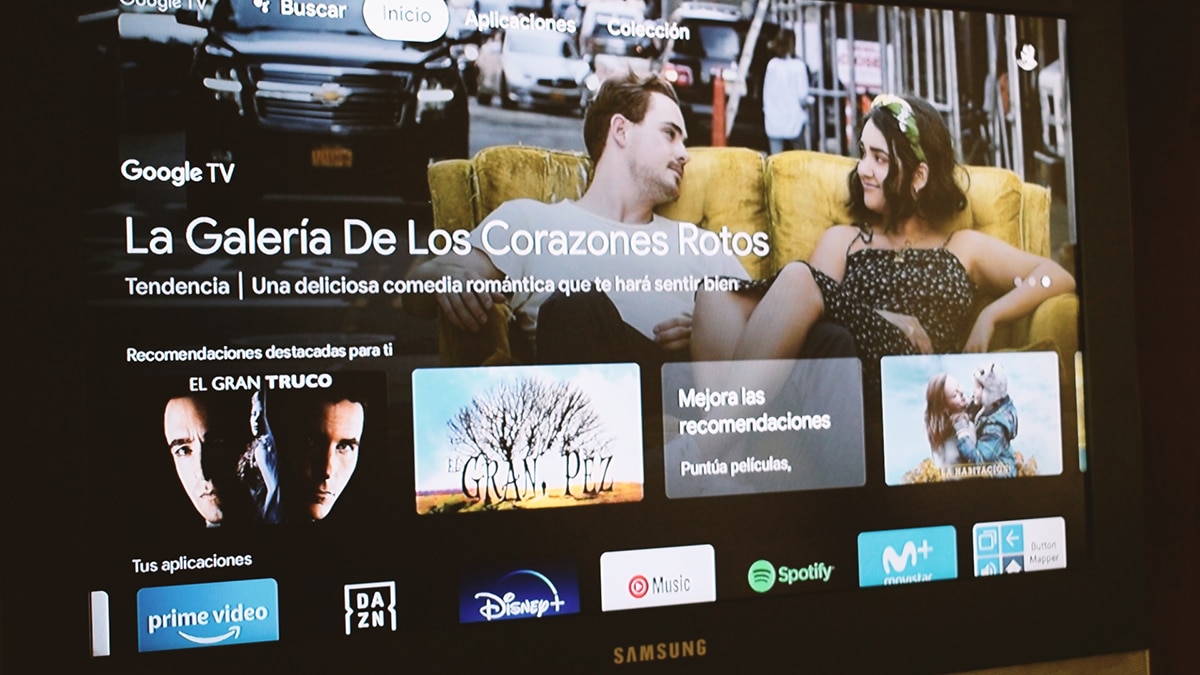
There's a second method worth knowing, as we'll use it later for adjusting volume, power, and input. On your TV screen, scroll to the top right corner and select your profile ; from there you'll access All Settings , the complete device configuration panel. Here you'll find sections like Remotes and Accessories , which contains almost all the options related to the remote control: pairing new accessories, configuring physical buttons, adjusting the customizable button, or calibrating the TV remote.
You already have a few details you can change ; this is to make some minor adjustments to your device, specifically entering your email address, password (if you have one), and other information. In addition to that, there are a few other features that, when combined, make this something truly worthwhile.
How to configure the volume, power, and input buttons on the remote control
Before diving into the actual remapping process, it's worth pausing to highlight a feature many users discover too late: the Chromecast remote with Google TV, and also the remotes for newer Google streaming devices, can control the volume, power, and input of your TV, soundbar, or AV receiver via infrared. If you didn't set this up during the initial setup, you can do so at any time from the device settings, without needing to reinstall anything or reset the device.
To begin, turn on your streaming device and, in the top right corner of your TV screen, select your profile and go to All settings . Then go to Remotes and accessories and choose Configure remote buttons . This will take you to the remote control button configuration screen, where you can complete each section separately. If you haven't added any devices yet, you'll need to do so before continuing: select Add a device , specify the device type (TV, soundbar, or AV receiver), and then the brand.
set volume
- On the controller button configuration screen, select Volume and choose the device on which you want to play the sound. The message "You will now hear music" will appear on the screen.
- Check that the device's sound is enabled and select Next.
- When you hear the music, Point the remote at the device and raises and lowers the volume to check that it responds.
- In the "Do the volume buttons work?" section, select Yes or, if that hasn't worked, the option try again.
Please note that for the volume buttons to work, you must point the remote control directly at the device . Also, the remote cannot control the volume of some specific TV, soundbar, or receiver models, so if it doesn't respond after several attempts, your device is most likely not compatible with this function.
Configure the power on
- On the remote control settings screen, select On and the device you want to turn on and off with the remote.
- Turn off the device by pressing its physical power button; then, Press the power button on the remote controlWait about eight seconds and turn it back on.
- In the section "Did the power button work?", select Yes o No, try again.
Just like with volume control, the remote can't power on some TVs, soundbars, or receivers. This is a hardware limitation, not a configuration issue, so you shouldn't worry about it if your device falls into this category.
Configure the input
- On the controller settings screen, select Entry.
- Using the remote control, press the button to change inputs and Go through all the television entrances.
- If the button is working correctly, reselect the HDMI port to which your streaming device is connected.
- In the section "Did the button to change input work?", select Yes o No, try again.
Common problems with volume, power, and input
When something isn't working, the first piece of advice is always the same: point the remote control at the device you want to control . Infrared requires a direct line of sight, so any obstacle between the remote and the device can disrupt communication. It's also a good idea to make sure the remote's batteries are in good condition and that the device is turned on.
You might see a notification that says, "Chromecast or Google TV Streamer is at maximum volume. Try using another remote to increase it further." This happens when you've enabled volume control on your streaming device and it reaches its maximum level. In that case, you might be able to increase the volume directly on your TV, receiver, or soundbar using the remote that came with the device.
You may also see the message "Use a remote to adjust the volume. Check this TV's Chromecast or Google TV Streamer settings for more options." This appears when you've configured the remote's volume button to directly control the volume of your TV, receiver, or soundbar, and you're trying to adjust it using your voice or a touchscreen . In that case, you'll need to use the Chromecast or Google TV remote, or the original remote that came with the device.
Create a shortcut with the customizable button
The latest voice control remotes, like the one that comes with Google's new streaming services, include a customizable button identified by a star icon . This button lets you create a shortcut to open the Google Home dashboard, launch a favorite TV app, or display your TV or monitor's input source. It's practically the most versatile button on the entire remote and one of the best features of recent generations.
Create a shortcut
- Press the customizable button and choose the shortcut type among the options that appear on the screen.
Edit a shortcut
- Press the customizable button for one or two seconds.
- Choose the shortcut you want to create: Open Google Home, Open a favorite app o Display screen entries.
If the original shortcut was set to show device inputs and you want to change it, follow these steps: make sure there is no physical barrier between the remote and the screen ; go to the customizable button settings from the top right of the TV screen by going to All settings → Remotes and accessories → Configure remote buttons → Customizable button ; and finally choose the type of shortcut you prefer to use.
How to Map Chromecast Remote Buttons with Google TV
Google has gone a step further so that Chromecast now offers Google TV through a remote control that allows us to quickly access YouTube and Netflix , or even perform those control operations for quick interaction.
And the truth is, Google TV looks fantastic for offering a very enriching , fast, and functional audiovisual content experience. Best of all, we can configure or map the buttons on the remote control.
- We have to go to Google Play on the desktop, since from the mobile it does not allow us to install the app on other devices
- From a PC with Google Play, we install this app:


- La we install on Google TV and it is important that from the PC that we install it is under the same local network
- We go to Google TV on our TV screen, and we go to Apps
- It will be already installed
- We will have to give accessibility permissions to be able to operate with the buttons
- Once this is done, we open the app and we are going to «Add Buttons»
To grant these accessibility permissions precisely, the exact path within the system is System → Accessibility , scroll down to find Button Mapper , activate the Enable option , and as soon as you do so, the application itself will open automatically. This is an essential step: without it, the app will not be able to intercept the remote's presses, and the remapping will have no visible effect.
There's another equally valid and very convenient alternative: downloading Button Mapper directly from the Chromecast's Play Store , without needing a computer or an external APK. Simply search for it in the device's store, install it, and open it. Both methods work equally well, so choose the one that's most convenient for you depending on the devices you have available.
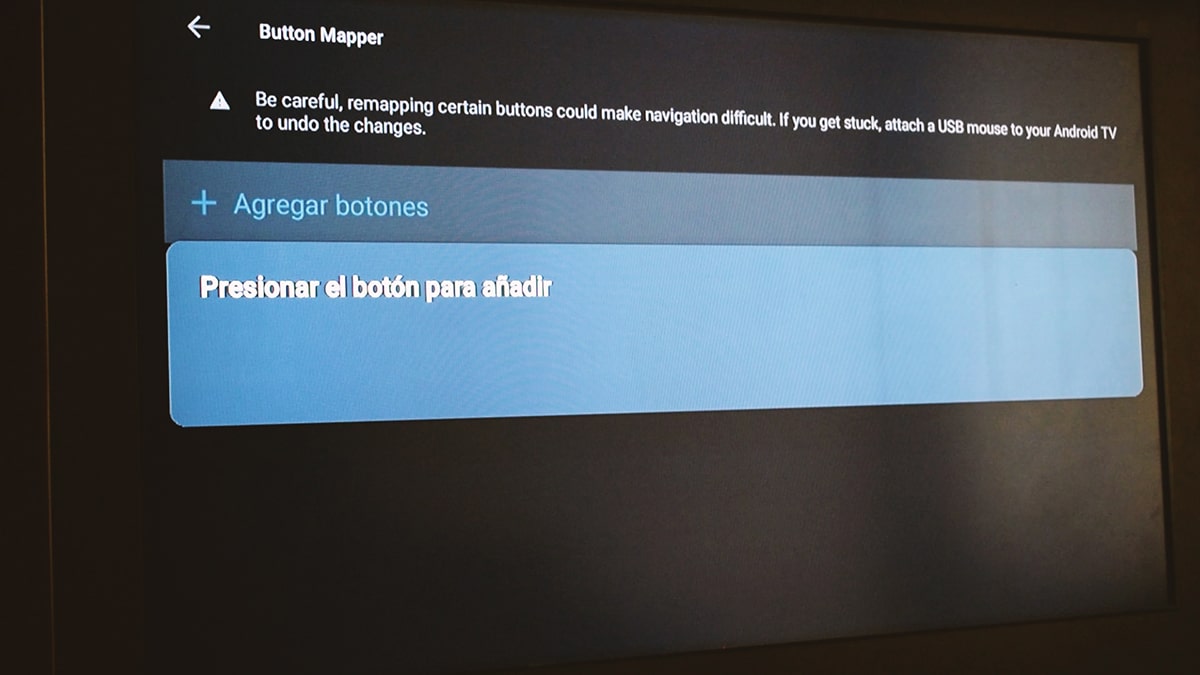
- On the next screen, we must click again to assign the button this time.
- In this case we will use the Chromecast remote control with Google TV the button for Netflix
- Pressed, we will see that it appears in the list of buttons
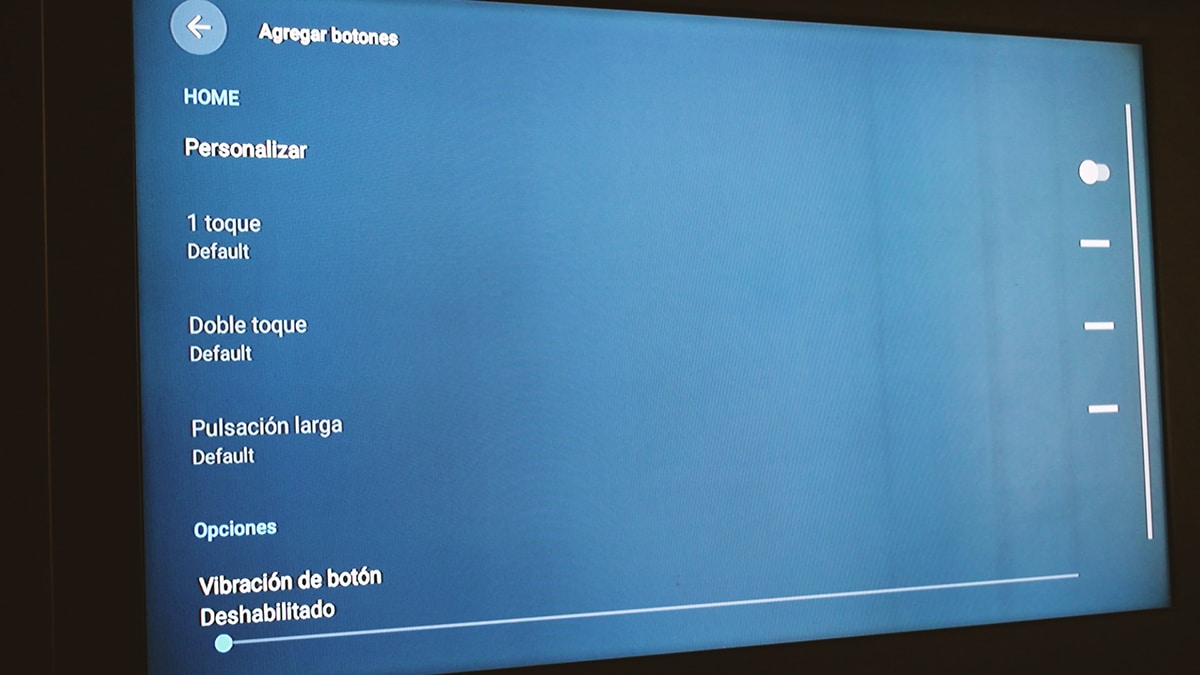
- We press and we go to the next screen where we must activate it
- Now we need to choose what action we want to take: a single press or two presses, since the third always launches Netflix
- We choose one and from the next screen we choose Applications and we search for Spotify
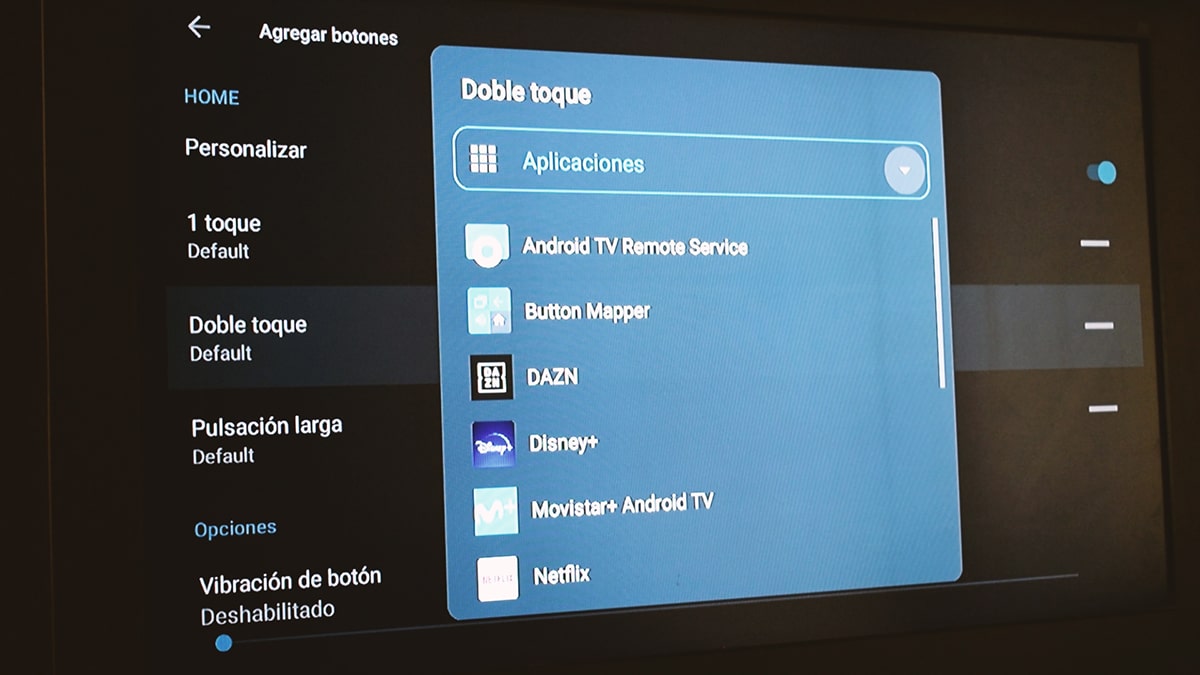
- We've already assigned the button to always launch Spotify.
Which buttons can you remap and which can't? You can press virtually any button on the remote except the directional buttons, the select button, the back button, and the Google Assistant button . This is a logical restriction: these controls are essential for navigating the interface, so the system protects them and prevents you from using them. On the other hand, the Netflix, YouTube, mute, input switching, volume, and power buttons are fully customizable, and these are precisely the ones you'll find most useful.
Button Mapper lets you assign all sorts of actions, like taking screenshots, and other functions to customize your Chromecast remote with Google TV to suit your needs. Each button supports up to three different actions : a single press, a double press, and a long press. This means a single button can launch three different apps without you having to go through the home menu or waste a second searching for what you want to watch.
If you ever want to delete a button's actions, simply return to the remapping menu and select the trash can icon next to each reassigned button. The action will disappear instantly, and the button will revert to its original behavior, so there's no risk of permanently messing with your controller.
At some point, Button Mapper might display a notification that the Pro version unlocks more options, but you don't really need it to enjoy the basics, which is simple remapping. The free version more than covers the needs of the vast majority of users and doesn't limit any of the functions we've explained here.
Recommended configuration examples and buttons
To give you an idea of the possibilities, here are some real-world configuration examples that demonstrate the system's versatility. On the Netflix button, you can assign one tap to HBO Max, two taps to Apple TV+, and a long press to Movistar+. On the mute button, for example, you can have cartoons accessed with one tap to open Disney+ and two taps to open Crunchyroll. And on the source change button, you can keep the original function intact, assign two taps to view all installed apps, and open the Play Store with a long press.
We recommend these buttons:
- Change source input: all the freedom
- Netflix: perfect the one-press and double-press; prolonged always brings Netflix
- Mute buttonIdeal for animation platforms, documentaries, or music
- YouTube buttonPerfect for your favorite music or video service
- VolumeYou can hold it down for TV control and add a long press for another app
Here's how you can map the buttons on your Chromecast remote to launch your favorite streaming platforms. Using apps becomes incredibly fast: you stop wasting time navigating menus and turn every press into instant access to what you really want to watch.
See the channel guide that broadcasts live
Chromecast can provide you with the channel guide information you'll likely need from time to time to see what's currently airing. In many cases, having the EPG readily available, or at least knowing how to access it easily, is essential, and this is possible using the remote control.
If you're watching content on this platform, to access it you simply need to press the back button (the arrow) twice. Once you do this, go to the "Live" section to see the full schedule of channels available on the platform.
Each channel has its own channel lineup, and you can switch between them simply by tapping the + and - symbols. You have to choose between them, and the schedule runs from morning until late at night. It's commendable that the Chromecast app itself offers this feature and makes it available to us.
Reconfigure the YouTube button
The YouTube video portal is another one you can customize if you wish, especially if you want to get the most out of the platform. Setting it up isn't difficult, and you can even have it load a cover image featuring your favorite artist, among other features.
To complete this process, you need to do the following on your Chromecast device , specifically the remote:
- Turn on your Chromecast on your TV with the red button
- Once this is done, press the YouTube button for at least two seconds in a row
- A total of three options will appear, choose the preferred oneIn this case, it is best that you choose to configure the section that interests us, to be able to start with an exact URL, load our profile and other details.
- You can make other adjustments, including viewing content in smaller, medium and high sizes, increasing the quality of the video and other details that may be of interest to us, which in the end is what we want if we use the platform.
- For the rest, everything is ready, The YouTube setup on Chromecast will depend on you.
Troubleshooting common problems when customizing the remote
Not everything works perfectly the first time, and it's a good idea to have a few emergency troubleshooting tips handy. If, when you go to Configure remote buttons → Add a device, the interface returns you to the previous screen after selecting TV, soundbar, or AV receiver, without displaying any error message, it's most likely a software issue with the device itself. In these cases, several users have confirmed that a factory reset completely solves the problem, although it does involve reconfiguring the account, profiles, and all installed applications.
Before resorting to that extreme, it's worth trying less invasive alternatives. You can go to Apps → System apps → Android TV IR service and clear the app's data or reset it, although in many cases this action makes no difference. You'll also see other services with similar names, such as Android TV Remote Service , which is used to control Chromecast from a phone or tablet and has nothing to do with the remote's infrared. And there are system packages like com.google.tv.settings.chromecast or Input devices (com.android.inputdevices) whose purpose isn't entirely clear, so it's best not to touch them unless you know exactly what you're doing.
If you're proficient with Android and comfortable installing apps from external sources or using ADB, you can always resort to advanced tools to inspect the system, but for the vast majority of users, the quickest and safest way remains the same: restart the device, check that everything is up to date, and if nothing works, perform a factory reset . It usually only takes a few minutes and returns the controller to a fully functional state.
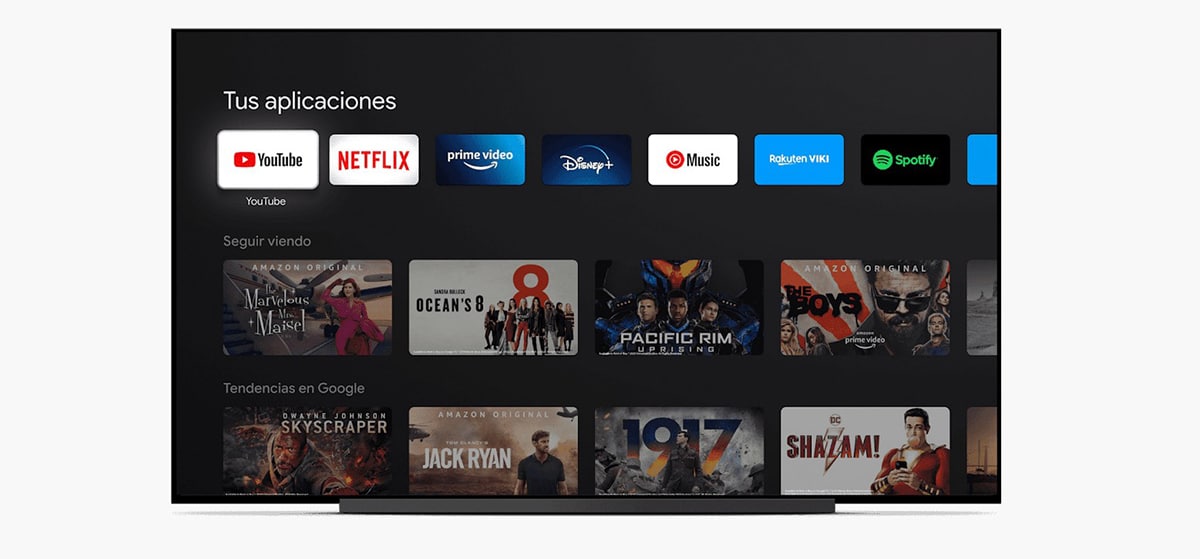
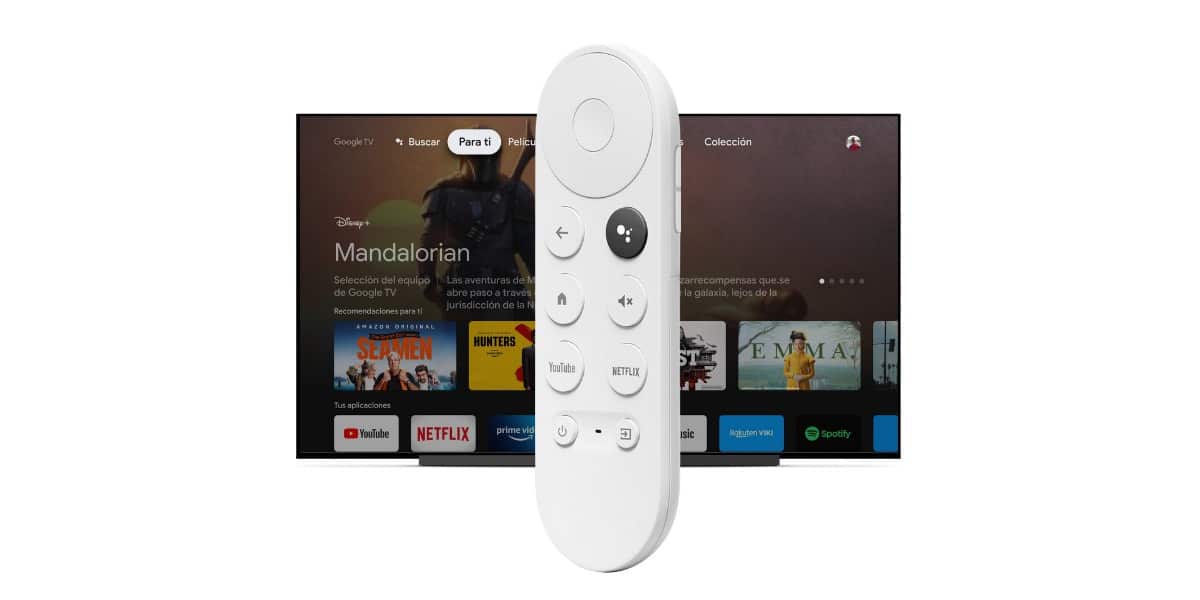
Customizing your Chromecast remote with Google TV is one of those small improvements that completely transforms your daily experience. With Button Mapper, you can turn the dedicated Netflix or YouTube buttons into shortcuts to any platform, with up to three different actions per key. Meanwhile, the system's native settings let you control the volume, power, and input of your TV, soundbar, or AV receiver. Add the customizable button from the latest remotes, and you'll have almost total control over your living room, without having to navigate endless menus or clutter your table with multiple remotes. Take a few minutes to configure everything carefully, try different combinations until you find the one that best suits your habits, and from then on, every viewing session, movie night, or music session will be much more direct, convenient, and faster.
Table of Contents
- 1 Quickly access settings
- 2 How to configure the volume, power, and input buttons on the remote control
- 3 Create a shortcut with the customizable button
- 4 How to Map Chromecast Remote Buttons with Google TV
- 5 Recommended configuration examples and buttons
- 6 See the channel guide that broadcasts live
- 7 Reconfigure the YouTube button
- 8 Troubleshooting common problems when customizing the remote