

At a time when privacy and digital freedom have become priorities for millions of users, Telegram has established itself as one of the most powerful alternatives to WhatsApp. One of the biggest barriers to abandoning the Meta app used to be the fear of losing chat history and stored memories. However, it's now possible to easily transfer your WhatsApp chats to Telegram , allowing you to migrate your data without starting from scratch.
Telegram has implemented a smart feature that allows you to import conversations not only from WhatsApp, but also from other platforms like Line or KakaoTalk. This capability is especially useful for those looking for an app that uses less data on their device and offers more advanced group and file management features.

How to export WhatsApp conversations to Telegram on Android
For Android users, the process is straightforward and relies on WhatsApp's native export function and Telegram's import capabilities. To ensure everything works correctly, it's essential to have Telegram updated to its latest version.
Below, we detail the exact steps to make the transfer:
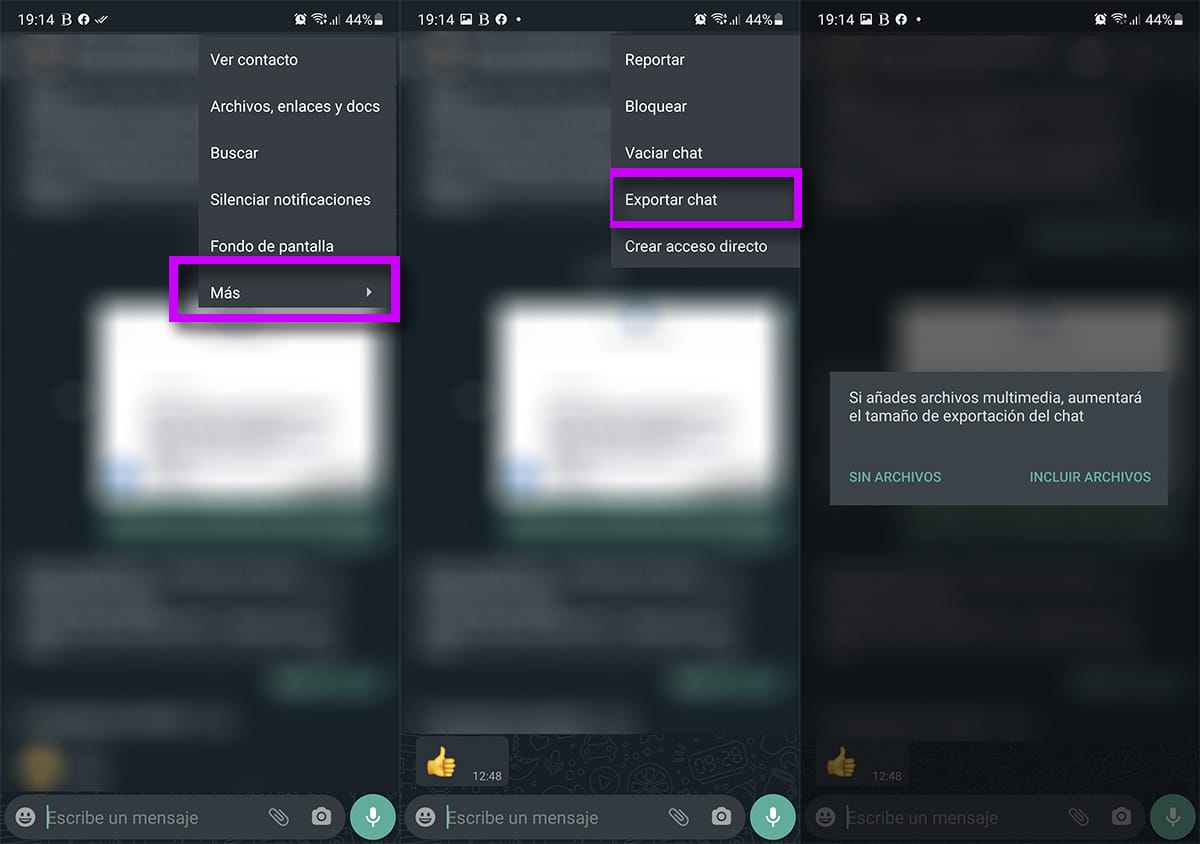
- Open the WhatsApp application and enter the individual or group chat that you wish to move.
- Tap the button of the three vertical dots (⋮) located in the upper right corner to display the options menu.
- Select option "More" and then click on "Export chat".
- The system will ask you if you want "Include files"If you select this option, photos, videos, and voice notes will also be transferred. Keep in mind that this will increase the file size and use more mobile data.
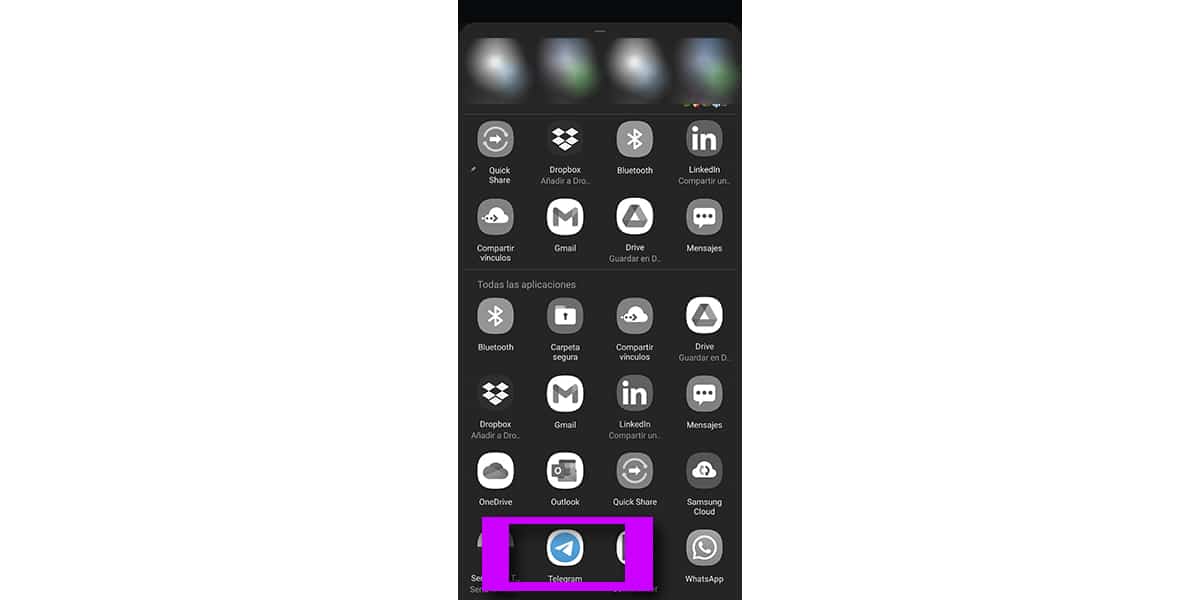
- The Android sharing menu will open; here you must search and select Telegram.
- Once inside Telegram, choose the contact or target group wherever you want to import the conversation.
- Finally, confirm the action by pressing the button. "To import".
How to import WhatsApp chats to Telegram on iOS (iPhone)
On Apple devices, the process varies slightly in terms of navigation, although the result is the same. It's essential to have the latest version of Telegram from the App Store so the application can interpret the exported file format.
- Method from the Contact Info: Enter the WhatsApp chat, tap on the contact or group name At the top and at the end of the list of options, select "Export chat".
- Quick method from the list: On the main WhatsApp chat screen, swipe the desired conversation to the left, tap the icon of the three dots (“…”) and choose "Export chat".
- Just like on Android, choose if you want include media files and then select Telegram in the iOS share menu.
- Find the destination contact on Telegram and confirm the import of messages.
Important details about importing messages
It's essential to understand how this data is displayed after migration. Imported messages will be arranged chronologically according to their original date, avoiding any temporal confusion. However, to differentiate native content from migrated content, Telegram adds a label indicating that they are "imported texts" next to the date.
A key benefit is that all members of the Telegram chat will be able to see the imported messages if you decide to move the conversation to a group or shared chat. Furthermore, this process allows you to have an immediate cloud backup , since Telegram stores the data on its servers and doesn't rely solely on your phone's local storage.
If you're looking for an even more integrated experience, you can give Telegram the appearance of WhatsApp to make the visual transition easier for you and your contacts.

Advantages of Telegram over WhatsApp storage
One of the main reasons for this change is storage space management . Unlike WhatsApp, which saves the vast majority of data and multimedia directly on the device, Telegram uses the cloud . This means you can access years of chat history, photos, and videos without them taking up any space on your internal storage.
For those struggling with lack of storage space, Telegram offers a powerful tool in Settings > Data and storage > Storage usage , where you can free up gigabytes by thoroughly cleaning WhatsApp and Telegram, controlling cache size, and deleting temporary files without losing access to the original messages in the cloud.

Advanced trick: Save WhatsApp chats using Telegram Desktop
If your goal isn't just to migrate, but to create a readable historical archive , there's an advanced method. WhatsApp's native export generates a raw .txt file that's difficult to read. Telegram Desktop, on the other hand, allows you to export chats in HTML format.
The workflow would be as follows: Import the WhatsApp chat to Telegram (mobile) and then export that chat from Telegram Desktop . This way, you'll get an HTML document that you can open in any browser, maintaining a similar look and feel to the app, with integrated images and stickers—ideal for offline reference or legal and personal backups.
Privacy controls and other new features in Telegram
Beyond importing chats, Telegram has strengthened its control over your digital presence . It's now possible to delete sent and received messages for both users without leaving a trace. Furthermore, secret chats, user-created groups, and call history can be deleted for all participants at any time, ensuring that Telegram's servers don't store records of these interactions. This allows you to activate invisible mode on Telegram to protect your privacy.
Other notable improvements include:
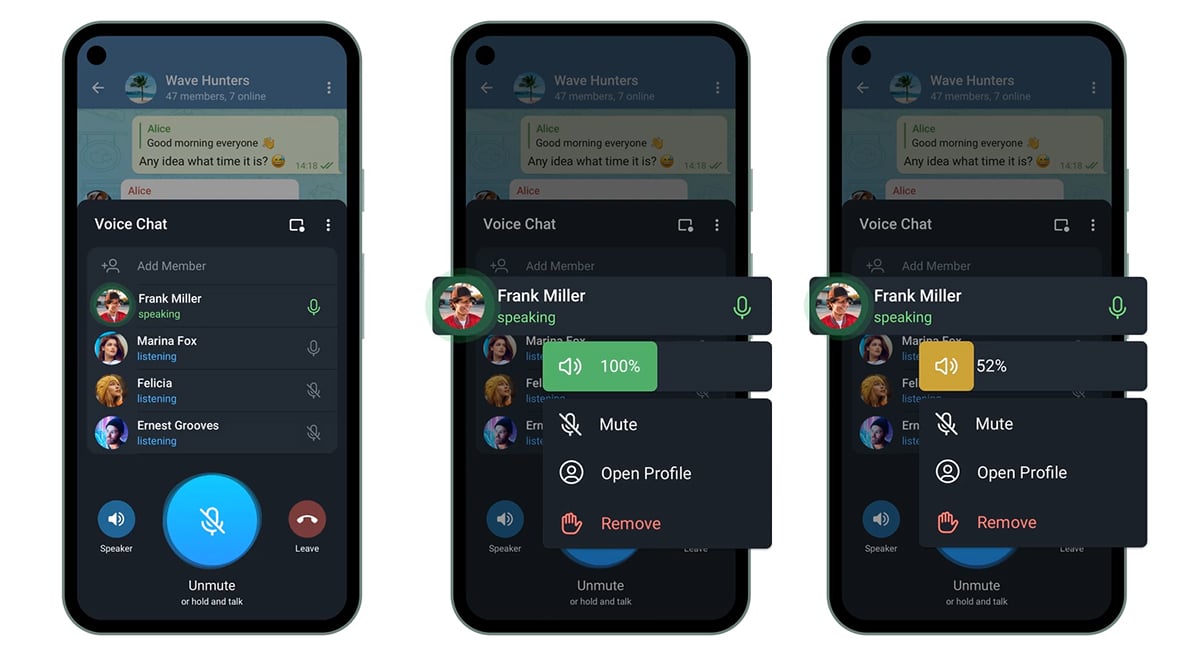
- Improved voice chats: Individual control of participant volume and advanced management for administrators.
- Optimized audio player: Ability to skip forward or backward through tracks by holding down the navigation buttons and fade effects when pausing.
- Welcome stickers: Automatic sticker suggestions to greet new contacts joining the platform.
- Animations on Android: Visual optimization when downloading files, playing music, or loading chats.
- Community security: Option to report fake channels and groups that impersonate famous people or organizations.
- Accessibility: Significant improvements for users of TalkBack and VoiceOver.

Having complete control over your conversations is essential. Whether you decide to switch to Telegram for its cloud features or look for an alternative like Signal (although the latter doesn't allow such a simple direct import), the first step is to secure your data . Backing up to Google Drive or iCloud is recommended, but importing to Telegram offers a level of versatility in access and cross-platform compatibility that WhatsApp can't yet match.
Table of Contents
- 1 How to export WhatsApp conversations to Telegram on Android
- 2 How to import WhatsApp chats to Telegram on iOS (iPhone)
- 3 Important details about importing messages
- 4 Advantages of Telegram over WhatsApp storage
- 5 Advanced trick: Save WhatsApp chats using Telegram Desktop
- 6 Privacy controls and other new features in Telegram