
Today we're going to show you how to use Samsung's calculator in GOD mode , or, for those who prefer a more technical term, how to become a master of multitasking. This trick is ideal for transforming a basic tool into a powerful calculation station, especially on devices in the Galaxy Note line (from the Note 10 to the Note 20) and the Galaxy S series (like the S10, S20, and S20 Ultra), although it's compatible with most modern Korean phones that support these interface features.
The real magic happens thanks to the Edge panel , which lets you launch the app in windowed mode . This Samsung feature allows the calculator to float above other apps instead of taking up the entire screen. This is where the key to this great trick lies, allowing you to analyze visual data while performing mathematical operations in real time, opening up a whole new perspective on productivity.
How to use the Samsung GOD mode calculator

Let's get straight to the point so you can quickly be surprised by a feature you've had right in front of you for a long time, but perhaps no one has explained it to you in detail. The key to this method is the combination of advanced multitasking and opacity management.
The goal is to open the Samsung Calculator in windowed mode, capture an image of the data sheet, budget, or receipt you need to process, and then reduce the app's transparency . This makes the calculator semi-transparent, allowing you to see the figures in the document directly underneath while entering numbers in the app, preventing transcription errors and making the process much smoother.
Follow these detailed steps to achieve it:
- We activate the Edge panel To launch the Samsung Calculator app (make sure you have previously added the calculator to the shortcuts on this panel).
- We drag the start icon from the application towards the center of the screen, specifically towards the window area that the system indicates.
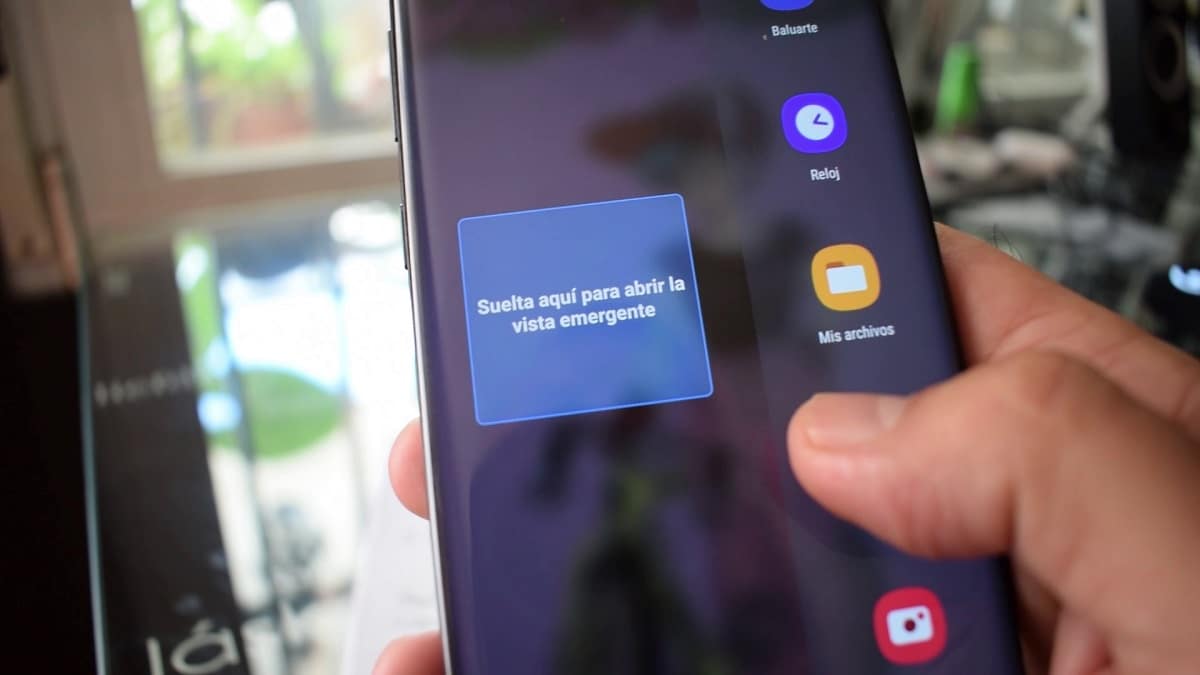
- Once the app opens in window mode, we click on the first icon located in the top bar of the window (the transparency/opacity icon).
- We reduced opacity approximately halfway up or at the level that best allows us to visualize the background.
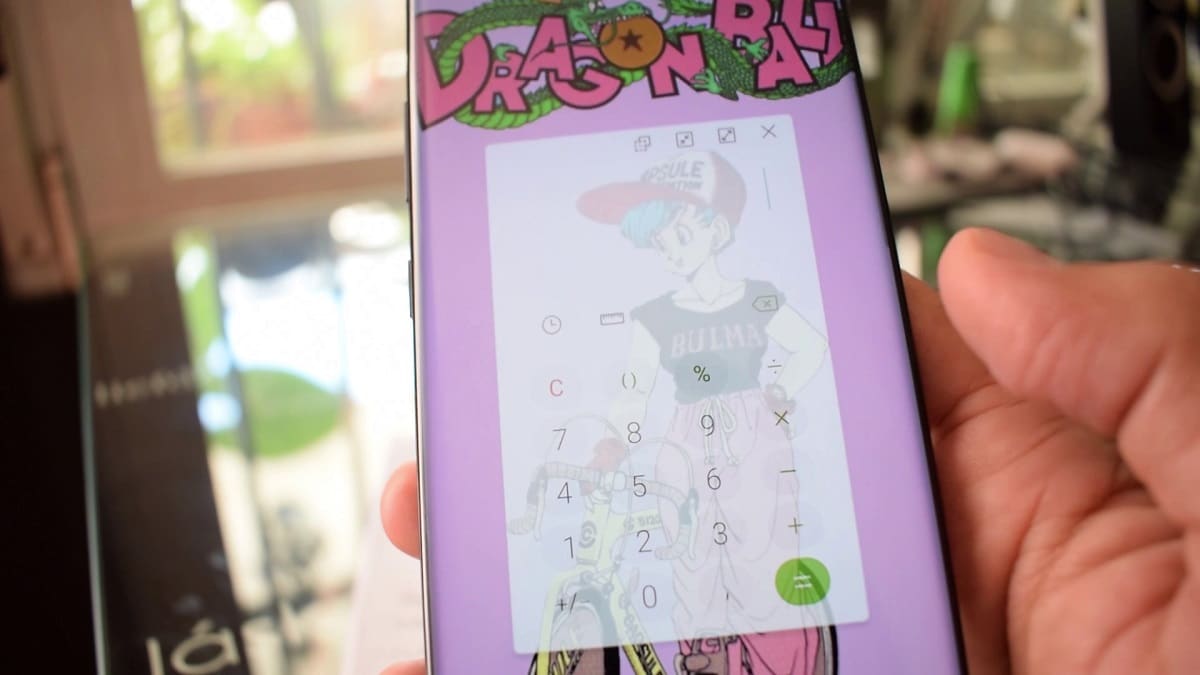
- Now We open the camera app of our device.
- We took a photograph of any report, budget, purchase receipt or document that contains the figures we need to work with.
- We open that capture directly from the camera gallery.
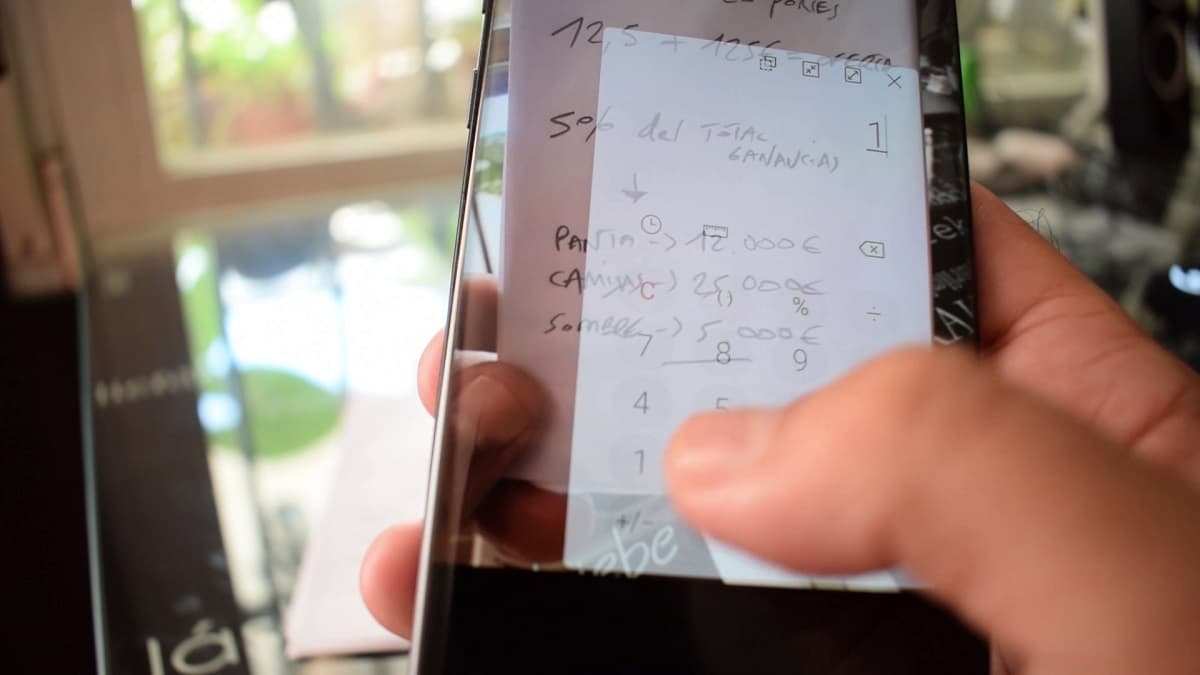
- Finally, we have the window of the Samsung semi-opaque calculator floating over the image, allowing us to perform calculations based on the visible background data in authentic GOD mode.
Visual optimization and energy saving: Dark Mode
In addition to the power of windowed mode, it's essential to discuss visual optimization . Using dark mode on Samsung and Android devices in general offers numerous advantages. It's not just about aesthetics; it also allows for considerable energy savings , especially on OLED and AMOLED screens , where black pixels are completely turned off, reducing battery consumption.
From a health perspective, dark mode protects eyesight and reduces eye strain by decreasing exposure to blue light . This type of light is responsible for disrupting sleep cycles and, with prolonged exposure at high intensity, can cause vision damage or even contribute to premature skin aging.
To activate this option in compatible applications (such as the Google calculator or other ecosystem tools), you generally just need to follow these steps:
- Access the settings menu using the three point icon in the upper right corner.
- Select the option «Choose theme».
- Choose between light, dark, or system defaultThis last option is the most efficient, as it allows you to program the automatic change according to the time of day.
This approach not only modernizes the design, but also improves the contrast between elements , making it easier to read in low-light environments and allowing the user to relax while working with numerical data.
This feature of apps in a window with variable opacity is one of Samsung's most underrated tools. Whether calculating a total receipt, analyzing a complex budget, or managing spreadsheets, the ability to overlay the calculation tool on top of the visual information eliminates the need to constantly switch between applications.
We recommend you check out the attached video to see the exact implementation of the Samsung Calculator in God Mode. And if you want to further optimize your tech productivity, don't miss another great trick for managing Spotify from your Windows 10 PC.
Mastering these multitasking functions and adjusting the visual appearance allows you to maximize battery life and improve efficiency when working with numbers, turning a conventional smartphone into a professional productivity tool.
Table of Contents