Installing One UI 3.0 on devices like the Galaxy Note10+ has introduced a key change to how to access recovery mode in Android 11. If you have this customization layer or higher versions, you'll notice that the traditional method has changed, requiring an additional step to access the system's internal menu.
This means that, to perform critical tasks like clearing the Dalvik cache or performing a full factory reset, the usual button combination is no longer sufficient. Below, we explain in detail how to do it and what this process actually does.
What is the purpose of entering Recovery mode on a phone?
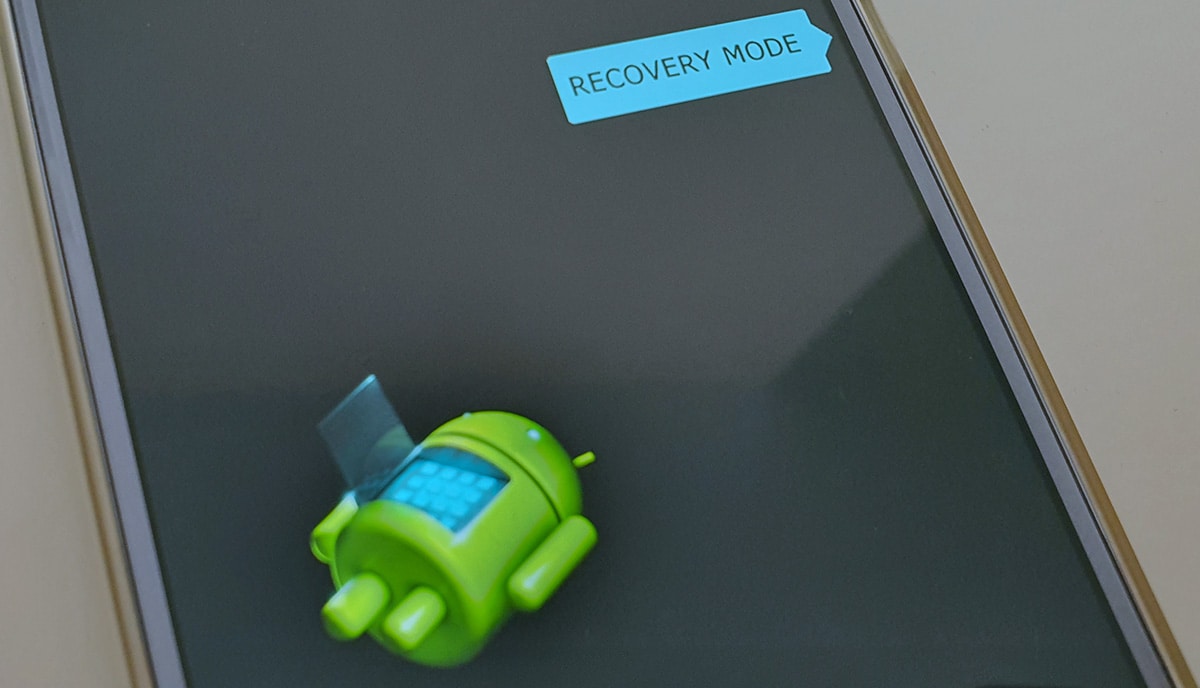
The usefulness of recovery mode is fundamental, especially for users looking to optimize their device after major Android updates . For example, when a new version of One UI is released, it's highly recommended to clear the cache to avoid software conflicts that could degrade performance or cause unexpected errors in the user experience.
Although manufacturers have optimized the update process and it is no longer strictly mandatory to perform a factory reset with each version upgrade, there are still compelling reasons to use recovery mode:
- Complete wipe: It allows you to erase all data to install a downloaded firmware or a ROM from scratch.
- Dalvik cache cleanup: Remove temporary system files that can slow down your computer.
- Installing custom ROMs: An essential step for those who wish to modify the original software.
- Development options: Access to advanced menus for ROM management.
If you're a typical user and your phone is working properly, you might not even notice this menu in your daily routine. However, in the event of serious system failures or when your device gets stuck on the boot logo (bootloop), recovery mode is the only way to save yourself.
Alternatives before resorting to a Hard Reset
Before deleting all your data, there are less drastic solutions that can resolve most common errors without requiring a complete format:
- Restart the device: A simple restart can fix frozen processes or temporary application failures.
- Reset network connections: If the problem is WiFi or data connectivity, deleting saved connections in the settings is usually enough.
- Safe Mode: It allows you to start your phone with only essential apps. If the problem disappears in this mode, it means a third-party app is causing the issue.
- Software update: Check in Settings that there are no pending updates, as many times errors are fixed with an official patch.
Crucial preparations: Backups and battery
Performing a hard reset will result in total data loss . Therefore, it is imperative to back up your multimedia, contacts, and documents. You have several options:
- Cloud: Go to Settings > Accounts and backup and use Google Drive or Samsung Cloud to back up your data.
- Smart switch: The official Samsung app allows you to make a complete backup on a MicroSD card or USB drive.
- PC: Connect your mobile phone to a computer and manually transfer your most important folders.
Additionally, make sure the battery has at least 50% charge , although ideally it should be at 100% or connected to the mains, as an interruption due to lack of power during the process could leave the device in a bricked or semi-bricked (unusable) state.
New method to enter Recovery mode on Android 11 and One UI 3.0
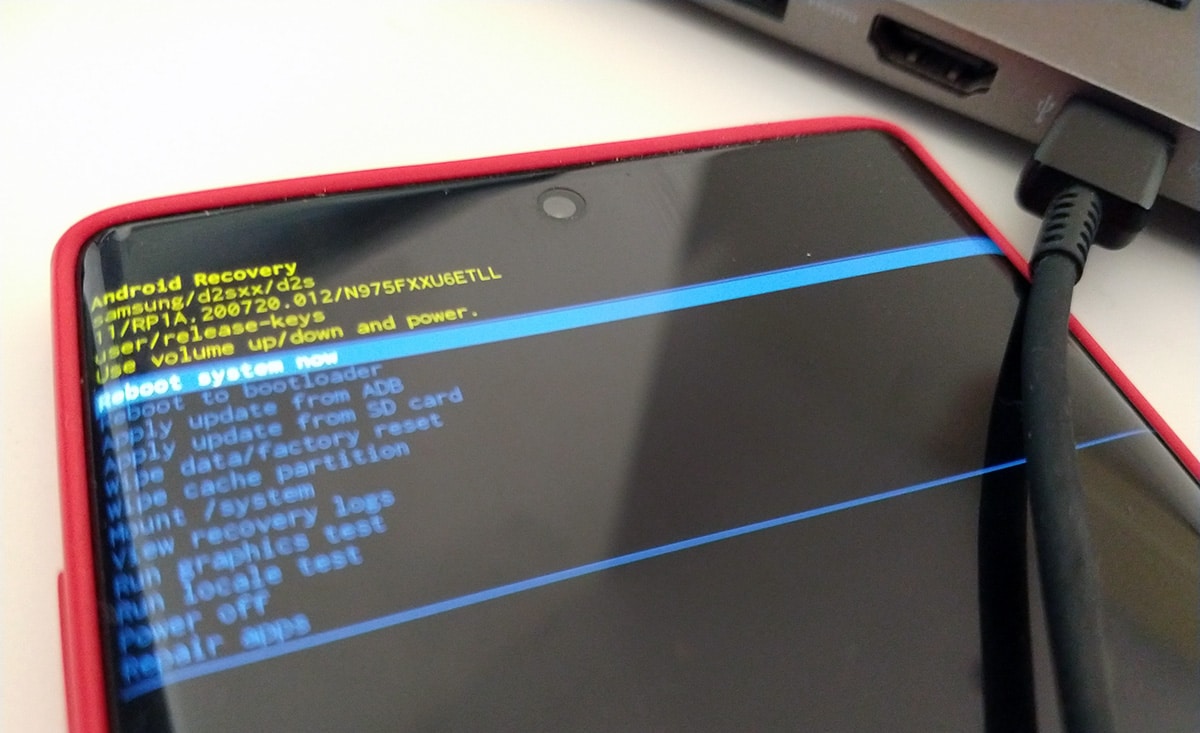
The most surprising thing about the One UI 3.0 update is that accessing recovery mode no longer depends solely on physical buttons, but on a physical USB connection . To enter, you need a USB cable connected to a PC, laptop, or even USB-C headphones.
Follow these steps strictly:
- Turn off the phone completely.
- Connect your mobile phone to a PC or laptop using the original charging cable. Important: Do not connect it to a wall charger, as this will prevent recovery mode from activating. If you are using USB-C headphones, simply connect them to the device.
- Press and hold the button simultaneously Volume Up (+) and the Power button.
- Maintain pressure until the Samsung logo and then the recovery menu.
- To navigate the menu, use the keys volume up and down, and confirm the desired option with the power button.
- Once the task is complete (for example, Wipe Cache Partition), select Reboot system now to restart the device.
Alternative methods to format your Samsung mobile
If you don't need to enter advanced recovery mode, you can reset your phone from the operating system itself:
Reset from Settings
1. Go to Settings and look for the section General Administration.
2. Click on the option Resetting.
3. Select Reset defaults and confirm the action.
Reset using buttons (Traditional Hard Reset)
For models that do not require a USB cable or for earlier versions:
1. Power off the device.
2. Press Power + Volume Up (On some models with a Bixby button, add the Bixby button to the combination.)
3. From the menu, select Wipe data / Factory reset and confirms in Yes.
4. Select Reboot system now.
Potential problems and critical warnings
The hard reset process is not without risks. It is vital to know the following points to avoid disasters:
- FRP (Factory Reset Protection) Lock: If you format your phone without signing out of your Google account, the system will activate the security lock. Upon restarting, the phone will ask you for the email and password from the previous owner. If you don't have them, the device will be locked.
- Process interrupted: If the phone shuts down during the wipe due to the battery, you could cause a critical failure in the system partition.
- Irreversible data loss: Any file not backed up to the cloud or SD card will be permanently deleted.
If you notice that the menus don't match the explanation or the phone doesn't respond to the combinations, the safest thing to do is to go to Samsung's official technical service or consult the community support forums to avoid damaging the motherboard.
Accessing recovery mode on Samsung devices with Android 11 and One UI 3.0 now requires a connection to a computer or USB-C headphones, a detail that might be confusing but is essential for performing deep maintenance. Clearing the cache or performing a factory reset are powerful tools for restoring device performance and fixing persistent software errors.
Table of Contents
- 1 What is the purpose of entering Recovery mode on a phone?
- 2 Alternatives before resorting to a Hard Reset
- 3 Crucial preparations: Backups and battery
- 4 New method to enter Recovery mode on Android 11 and One UI 3.0
- 5 Alternative methods to format your Samsung mobile
- 6 Potential problems and critical warnings