

Many websites display a notification asking if we want to receive alerts about new posts, the latest news, or other relevant information. However, some websites send us notifications of all kinds that are unrelated to their original topic, becoming a constant source of spam on our devices.
This banner inviting us to enable notifications has become one of the common elements that appear when visiting a website for the first time. Unlike the cookie notice, the notification banner shouldn't be accepted if we don't want our device to be flooded with irrelevant or annoying alerts.
It's important to understand that these alerts can come from various sources: from legitimate meeting reminders to malicious notifications from websites trying to trick users, or even notifications from open incognito tabs and playing audio. Fortunately, there's an effective solution: disabling all global notifications or surgically removing the specific websites that are intrusive.
Disable Chrome notifications on Android
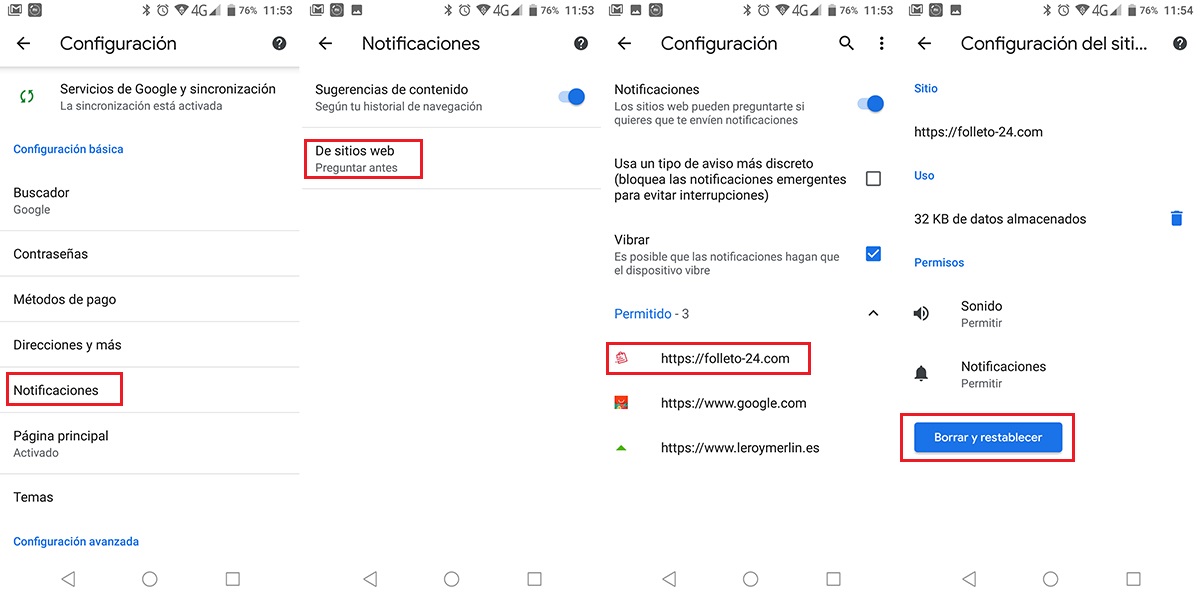
To manage notifications in the most popular Android browser, follow these detailed steps:
- Once we have opened Google Chrome, we go to the adjustments from the application (three-dot icon in the upper right corner).
- Within the application settings, click on Notifications.
- In the Notifications menu, we tap on From websites (or Website settings > Notifications, depending on the version).
- Next, we have two main routes depending on our needs:
- Turn off all notifications of Google Chrome by disabling the master switch NotificationsThis will prevent any website, even those accepted by mistake, from sending us alerts.
- Remove notifications from a specific websiteIf we only want to block one site, we must click on the website listed in the section Permitted and press on Delete and reset or simply turn off the individual switch for that site.
It's worth noting that Chrome implements an automatic blocking system for websites it detects as intrusive or deceptive. Furthermore, if you browse in incognito mode, you won't receive notifications, which is an effective privacy measure.
We are not against notifications, but when the misuse of these features becomes widespread, users tend to reject them en masse, losing the usefulness of those that are truly valuable.
Although Chrome is the standard, there are other powerful alternatives. The procedure is similar for most, but here we detail the specific steps for each:
Safari (iOS)
For iPhone users, management is primarily done from the system: go to Settings > Notifications > find Safari in the list of applications and disable the corresponding permissions.
Microsoft Edge
Open the Edge app, tap the three lines at the bottom, go to Settings , and then to the Notifications section to manage website toggles.
Mozilla Firefox
Within Firefox, click the three dots at the bottom, go to Settings , then to Privacy and Security , and finally select Notifications to uncheck the permissions box.
Opera and Opera GX
Access your profile icon (bottom right), tap the gear icon ( settings), find the Notifications section and disable the ones you don't want.
- My Browser: Go to profile > gear icon > Phone settings > Notifications > Mi Browser.
- Samsung Internet: Three lines down > Settings > Permissions > Notifications.
Universal method from Android Settings
If you don't want to go into each browser individually, you can force the deactivation from the core of the operating system:
- Open the Configuration general information about your Android device.
- Choose Applications or Application Manager.
- Find the browser you want to mute in the list (Chrome, Edge, Firefox, etc.).
- Touch on the option Notifications.
- Check the option of Block or Deactivate all notifications from that app.
Solutions to common problems and "phantom" notifications
Sometimes, even after disabling permissions, notifications still appear. This can be due to several reasons:
- Cache and temporary data: Browsing history may keep alerts active. Go to Privacy and Security > Clear browsing data and select cookies and cache.
- Malware or Extensions: If the alerts look like viruses or aggressive ads, you may have malicious softwareScan your device with Play Protect or an updated antivirus.
- Obsolete permits: Chrome sometimes revokes permissions for sites you haven't visited in a long time. If you want to get them back, check the Security check in the Privacy settings.
In extreme cases, if notifications persist without a clear origin, it is recommended to update the browser , reinstall the application, or, as a last resort, perform a factory reset of the device.
Having full control over website permissions allows for cleaner and safer browsing. By properly managing the notifications section, we prevent our device from being flooded with irrelevant alerts and regain peace of mind when using our smartphone daily.
Table of Contents