

The widespread use of instant messaging apps has transformed our communication, keeping us constantly connected via our smartphones. Within this ecosystem, WhatsApp remains the undisputed leader in active users, surpassing direct competitors like Telegram and Signal . Due to this intense usage, any minor interface issue, such as a keyboard configuration error, can be frustrating.
It's common for phone keyboards to change unexpectedly, or for a second-hand device to be set to a foreign language . It's crucial to understand that the typing language isn't managed directly through WhatsApp's internal settings; it depends entirely on the virtual keyboard installed in the phone's operating system. Depending on the brand, devices often come with Gboard (Google) by default, although manufacturers like Huawei and Honor integrate Microsoft's SwiftKey .
Having the correct keyboard layout is vital, especially if you've moved to another country or need to type in languages that use different alphabets or special characters not available on the standard keyboard. Below, we provide a comprehensive guide on how to manage both your keyboard language and the application's interface language.

How to change the keyboard language in Gboard with WhatsApp

Gboard is the most widely used keyboard on Android. To switch between languages or add a new one while chatting on WhatsApp, follow these detailed steps:
- Open WhatsApp and enter any chat to display the keyboard.
- Look for the icon globe or sphere in the lower left.
- Quick tap: If you already have multiple languages set up, a simple tap will switch between them one after the other.
- Prolonged touch: If you press and hold the globe, the menu will open. «Change keyboard»From here you can choose the active language or enter "Language settings".
- Add new languages: Within the settings, press the blue button «Add keyboard»Find the desired language and, if it has an arrow, choose the regional variant (e.g., Spanish from Spain or Mexico) and the key layout (such as the standard one). QWERTY).
- Finish by pressing "Clever" to activate the setting.
How to change the keyboard language in SwiftKey
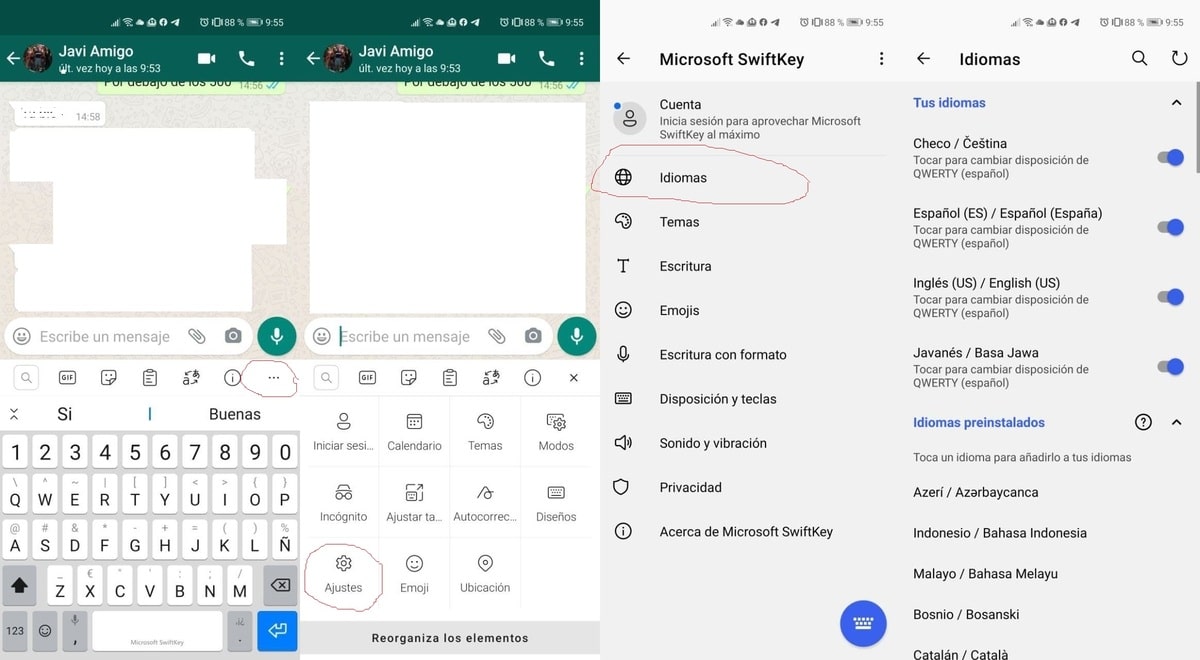
If you use SwiftKey, the process is slightly different, and some options are located deeper in the menu. This keyboard is very efficient because it can handle up to five languages simultaneously for predictions without needing to change the layout if they share the same Latin alphabet. To get the most out of it, you can read more tips and tricks for SwiftKey.
- Enter a WhatsApp chat and tap the icon of the three horizontal points in the top bar of the keyboard.
- Access the menu «Settings» (cogwheel icon).
- select the section "Languages" on top.
- Find the language you need and tap it so the app will switch it to you. download and install automatically.
- To alternate: Once configured, you can change the language by sliding your finger to the side on the space bar.
Change the keyboard language on iOS (iPhone)

On Apple devices, keyboard management is centralized through the iOS operating system. To change the keyboard you use in WhatsApp, do the following:
- Go to the app «Settings» from the iPhone > "General" > "Keyboard".
- Touch on the option "Keyboards" and then select «Add new keyboard ...».
- Choose your language from the list. Once added, you can edit order of the keyboards so that the preferred one appears first.
- Within WhatsApp, tap the icon of globe (lower left corner) to rotate between installed languages.
How to change the language of the WhatsApp application

It's important to distinguish between the keyboard language and the interface language (menus, settings, and notifications). Historically, WhatsApp adopted the system language, but now there are more flexible options for changing WhatsApp's language.
On Android:
You can change the language in two ways. The first is through «Settings» > "General Administration" (or Additional Settings) > «Language and text input»The second option is directly in the app: WhatsApp settings > "Application language"where you can choose the language without affecting the rest of the phone.
On iOS:
You should go to «Settings» > "General" > "Language and region" > «iPhone language»When you change the system language, WhatsApp will update automatically.
On KaiOS:
For devices with this system, access «Settings» within WhatsApp and look for the section "Idiom" To select the desired language and save the changes. If the option does not appear, you will need to change the operating system's general language.

Mastering these settings allows for smoother, more professional communication, preventing spelling errors and facilitating writing in multiple languages. Whether adjusting Gboard , SwiftKey , or the native iOS keyboard , the key lies in managing languages from the system or keyboard app, not just from the chat interface.

Table of Contents
