

"Can you change the location in Android 12?"
Many users wonder about this when they discover that the Global Positioning System (GPS) is an indispensable tool, but one that can sometimes compromise our privacy or limit our experiences in specific applications. Whether you want to send a fake location to a contact, protect your anonymity to prevent someone from tracking your movements, or simply optimize your experience in augmented reality games like Pokémon Go to find creatures that don't appear in your geographic area, there are effective methods to achieve this.
Spoofing GPS on Android is possible, and while it might seem like a complex process reserved for computer experts, tools exist today that allow you to perform this location spoofing intuitively. In this article, we'll reveal all the secrets and tools needed to spoof GPS on Android 12 and compatible versions, analyzing everything from advanced software to free apps and internal system settings.
Part 1: How to fake GPS location on Android 12 without Root
iMyFone AnyTo Location Changer presents itself as a robust and versatile solution. Originally designed for the iOS ecosystem, recent updates have made it fully compatible with Android 12. This software is ideal for those seeking an accurate and stable fake GPS location without the need for risky processes like rooting their device. Its interface is extremely intuitive, eliminating the technical barrier for the average user.
teleport mode
This is AnyTo's core function. Teleportation mode allows you to instantly change the device's position from point A to point B. It simply requires the user to select the desired location on the global map, and the Android operating system then believes the phone is physically located there.
two point mode
This tool is perfect for those who need to simulate realistic travel . It allows you to define a starting point and a destination, automatically plotting a route between them. The location moves smoothly, simulating a real trip, which is vital to avoid security detections in some applications that monitor abrupt geographical changes.
multipoint mode
Similar to two-point mode, but with extended capabilities. Multi-point mode allows you to mark multiple locations on the map. The software will generate a path that passes through each of the selected points, allowing you to create complex and customized routes through different cities or countries.
joystick mode
For augmented reality enthusiasts, joystick mode is the crown jewel. It offers a virtual controller that allows you to control your location in 360 degrees . This grants complete freedom to navigate the map in real time, allowing you to virtually walk the streets—essential for mastering Pokémon Go and changing your GPS location.
circular route
As an additional feature, iMyFone AnyTo offers a circular path . By defining a start and end point, the program can automatically align both points so that the movement cycle repeats, creating a scrolling loop that can be very useful for certain application tests or automations.
Below, we detail the step-by-step process for implementing this system:
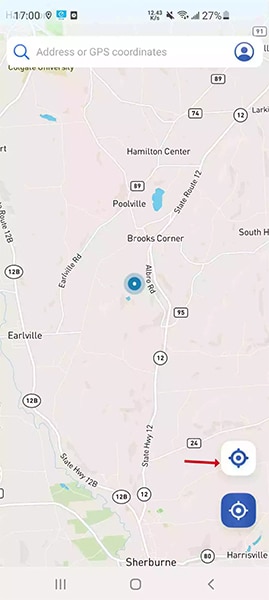
Step 1: Find my location
Run the program on your device and click the "Find My Location" icon in the bottom right corner. This allows the app to detect your actual starting point for easier navigation.
Step 2: Use the teleport mode
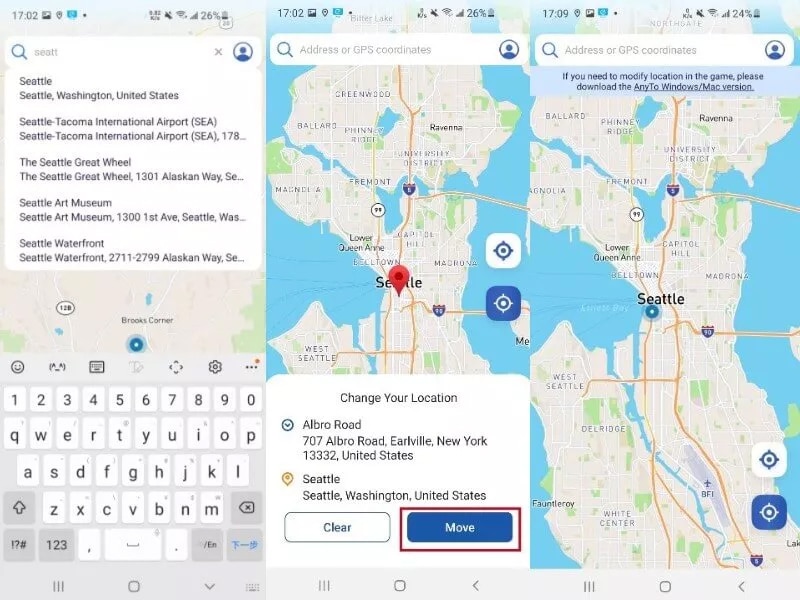
Once the app is open, select your destination. You can press and hold the desired area on the map or use the manual search bar . Upon confirmation, the message "Change your location" will appear; tap "Move" and your device will be virtually transported to the selected point.
Part 2: Other ways to change your GPS in Android 12

In addition to desktop tools, there are numerous apps available on the Play Store and third-party app stores that allow location simulation . It's important to understand that most of these apps require developer options to be enabled on Android to function correctly.

Fake GPS Go Location Spoofer
A robust option for any device running Android 6.0 or higher. It specializes in precise GPS coordinates and offers a clean interface.
- Advantages: It performs a very efficient location change, has multiple configuration options, and is widely compatible with versions higher than Android 6.0.
- Disadvantages: Some advanced features are restricted to the paid version, which may be expensive for some users.
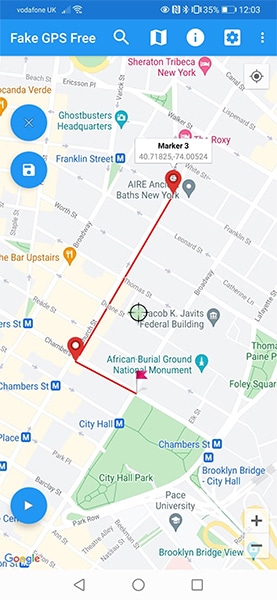
Fake GPS Location: Joystick and Routes
Recommended for those who prioritize joystick control . Its interface is optimized for smooth movement, making it a powerful tool for excelling in location-based games.
- Advantages: Compatible with the vast majority of Android devices and does not require jailbreaking or rooting.
- Disadvantages: It requires modifying developer settings (which may intimidate novice users) and may present occasional instabilities in Pokémon Go.

Fake GPS Location
One of the longest-running apps on the market. It allows you to simulate your position simply by dragging the map, but adds layers of complexity such as WiFi geolocation simulation , altitude calibration, and constant motion simulation.
- Advantages: It's free, contains no intrusive ads or in-app purchases, and is extremely reliable.
Fake GPS Location (Simplified Version / 2021)
It is characterized by its extreme simplicity and clear instructions. It is the ideal option for those who want no complications and just need to quickly create a location.
- Advantages: Free, no root required and very easy to use.
- Disadvantages: It lacks a joystick, which reduces the precision of movement, and being more recent versions, there is less data on its location record management.

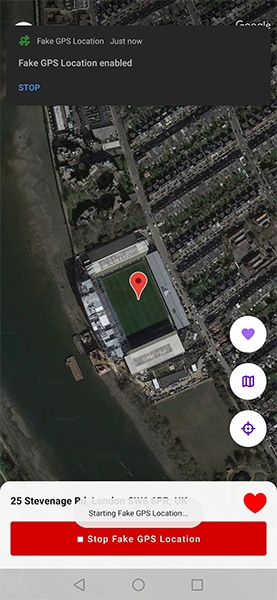
Fake GPS for WhatsApp and Floater
There are other interesting alternatives such as Fake GPS for WhatsApp (which works for any application, not just messaging) and Floater . The latter stands out for offering an overlaid map on the screen, allowing you to activate or stop the simulation from the notification bar and adjust the scrolling speed so that the system believes the user is physically moving.
Technical Guide: How to configure Android to simulate locations
For any Fake GPS app to work, Android requires the user to enable a special permission called "Select app to mock location ." This setting is not visible by default and is located in the hidden developer menu. Here's how to activate it:
- Enable Developer Options: Go to Settings > Phone Information. Look for the section "Build number" (or version) and tap on it seven or ten times consecutively until the message "You are now a developer" appears.
- Configure the Simulation App: Return to the main Settings menu, enter System > Developer options. Scroll until you find the option "Select app to simulate location".
- Assign the application: Click on that option and choose the fake GPS application you have installed (for example, AnyTo, Fake GPS, etc.).
- Execute the deception: Open the selected app, mark the point on the map, and press the button. Play o MOVERNow, any application that requests your location (Google Maps, WhatsApp, social networks) will receive the fictitious coordinates.

Advanced Features: Accuracy, VPN, and Privacy
It's crucial to distinguish between changing GPS coordinates and using a VPN (Virtual Private Network) . While fake GPS apps trick the hardware's location sensor, a VPN changes your IP address . This means that even if the GPS says you're in Madrid, your IP address could say you're in London. For complete deception, the ideal approach is to combine both methods.
Additionally, in Android 12 and later versions, Google implemented "Location Accuracy ." This service uses Wi-Fi signals, cell towers, and sensors (accelerometer, gyroscope) to triangulate your position. If you notice your location "jumping" or reverting to your real location, try improving GPS accuracy or disabling Location Accuracy Enhancement in Settings > Location > Location services.
From a security and privacy standpoint , changing your location helps protect your personal data from intrusive apps that constantly request GPS access. It's also a useful tool for accessing regional offers or geo-blocked content, allowing you to save money on online services whose prices vary by country.
There are other professional tools such as Dr.Fone Virtual Location or iToolab AnyGo , designed especially for developers who need to test applications in different regions of the world simultaneously, although these latter ones usually require the use of a computer connected to the device to guarantee the stability of the simulated signal.
Having complete control over the geolocation of an Android smartphone opens up a world of possibilities, from simple pranks on friends to professional use in software development. The key lies in choosing the right tool for your needs: if you're looking for simplicity, apps from the Play Store are sufficient; if you need absolute control and complex routes for games, software like iMyFone AnyTo is the superior option. It's always advisable to use these tools ethically and remember that to return to normal, you can simply disable the simulation in the app or uninstall the selected application from the developer options.
Table of Contents
