

In this day and age, reliving the magic of classic consoles on our Android phones is easier than ever. Emulation has not only become more popular, but it has evolved to the point where we can experience titles from almost any generation and platform without leaving home— or even while traveling on the subway!
Android emulation has gone from being a niche hobby to a highly accessible way to preserve, rediscover, and share video game history. Today, we can transform a mid-range phone into a small portable console capable of running everything from 8-bit classics to PlayStation 2, Nintendo 3DS, or Wii games, provided the hardware is up to the task and realistic settings are used. This flexibility is precisely what explains the growing interest in console emulators for Android.
Choosing the best console emulator for Android can be overwhelming due to the sheer number of options, each with its own specific features and compatibility requirements. That's why we've prepared a detailed and up-to-date analysis of the best emulators for Android. This will help you make an informed decision and get the most out of your device to play those classic games that meant so much to you.
Not all emulators are created equal, nor are they suitable for everyone. Some prioritize accuracy, others performance, others ease of use, and still others the ability to centralize dozens of systems in a single application. Hardware requirements, controller support, BIOS requirements, save game management, and update frequency also vary. Therefore, it's advisable to read each section before installing an application, especially if you're looking for a stable and trouble-free experience.
Table of Contents
- 1 Why use emulators on Android?
- 2 How to choose the best emulator for Android
- 3 RetroArch: The ultimate multi-system emulator
- 4 PPSSPP: The PSP Standard on Android
- 5 My Boy!: The best option for Game Boy Advance
- 6 DraStic DS Emulator: Pure Nintendo DS
- 7 Dolphin Emulator: Wii and GameCube on your Android
- 8 ClassicBoy: the all-in-one for nostalgics
- 9 NetherSX2 and PS2 emulation on Android
- 10 Azahar, Citra and Nintendo 3DS emulation
- 11 DuckStation, ePSXe and FPse: PlayStation 1
- 12 M64Plus FZ, MEGA N64 and Tendo64: Nintendo 64
- 13 Redream and Reicast: Dreamcast
- 14 Other essential emulators for Android
- 15 Key tips for making the most of Android emulation
- 16 Free or paid emulators? Options and differences
- 17 PC emulators: bring Android to your computer
- 18 Legality and safety: key aspects in emulation
Why use emulators on Android?

The main reason is the freedom and convenience of carrying thousands of games in your pocket. Emulators allow you to transform your phone into a true portable console capable of playing titles from different generations. Among the most notable advantages are:
- Access to jewels of the past: You'll be able to play titles that are no longer easily found or that only exist in discontinued physical formats.
- Convenience and portability: Your phone goes everywhere with you, making it easy to continue your games anytime, anywhere.
- Customization and technical improvementsMany emulators offer improved graphics, optimized sound, instant save and load, and customizable controls.
- Controller Compatibility: Most allow you to connect USB or Bluetooth controllers, making the experience much more authentic and comfortable.
- Conservation of digital heritageEmulation helps keep alive games that are no longer sold, that depend on closed servers, or that are difficult to find on their original hardware.
- Space and cable savingA single device can bring together catalogs from several consoles, avoiding the accumulation of devices, cartridges, discs and adapters.
- Modern functionsInstant saving, rewind, acceleration, visual filters, screenshots, achievements, and game profiles are advantages that the original console did not offer.
- AccessibilitySome emulators allow you to remap controls, adjust input difficulty, use adapted controllers, or play with a touch screen when there is no other option.
In short, emulators have democratized access to retro gaming, and new improvements appear every year to continue enjoying the best games without complications. However, it's important to understand that emulation isn't simply about downloading commercial games: the software that imitates the console is legal, but ROMs and disk image files must be obtained in a way that respects copyright and the laws of each country.
Another reason to use emulators is the ability to try out community-created translations, enhancement patches, restored versions, or mods that never made it to the original consoles. It's also useful for content creators, researchers, and gamers who want to study the design of classic games without relying on potentially unreliable, outdated hardware. In responsible hands, emulation functions as a living library of video game history.
How to choose the best emulator for Android

Before installing apps randomly, it's worth considering several factors. The first is the console you want to emulate , because there's no universal solution that works equally well on all systems. A Game Boy Advance emulator might run perfectly well on a modest mobile phone, while Wii, PS2, or Nintendo 3DS emulators require a significantly more powerful processor and GPU.
The second factor is your device's performance . It's not just the raw power of the processor that matters: cooling, RAM, Android version, graphics drivers, and the emulator's optimization all play a role. Phones with Snapdragon chips and Adreno graphics generally offer better support for some demanding emulators, though this isn't a guarantee. MediaTek, Exynos, or Tensor processors can also run many systems, but they may require different tuning.
The third point is compatibility and accuracy . A very fast emulator with graphical or sound glitches can ruin the experience. A slower but more accurate emulator might be better for specific games. Open-source projects usually document their progress, compatibility lists, and known issues, which helps you know what to expect.
You should also check the controller support . If you're going to play platformers, fighting games, or racing games, a Bluetooth or USB controller can make all the difference. Many emulators allow you to map buttons, adjust triggers, use joysticks, and save profiles for each game. The touchscreen is useful for quick games, but it doesn't replace a gamepad in titles that demand precision.
Don't forget about managing your saved games . Save states are convenient, but they shouldn't be your only backup. If your emulator allows you to export internal saves, sync with the cloud, or save to easily accessible folders, you'll be less likely to lose hours of progress when switching devices or updating the app.
Finally, consider legality and security . Download emulators from official stores, developer websites, or well-known repositories. Avoid modified installers, APKs with unusual permissions, and pages full of misleading ads. Emulation is a fantastic tool when used responsibly, and choosing the right source is part of that experience.
RetroArch: The Ultimate Multi-System Emulator

RetroArch is undoubtedly one of the leading examples of Android emulation . This open-source project isn't limited to a single console; it can run titles from over 40 different systems, from NES, SNES, Mega Drive, and PlayStation to lesser-known systems like WonderSwan and Atari 2600.
The secret to its success lies in the "cores ," downloadable modules from the interface itself that allow each console to be emulated independently. This way, the user can turn their smartphone into virtually any retro console simply by changing the appropriate core. This modular architecture is very powerful, although it also explains why the initial setup isn't as straightforward as that of an app dedicated to a single system.
Among its most notable features, RetroArch offers support for shaders and image filters that enhance the graphics of games, instant saving, game rewind, integrated achievements, and netplay for online play. All of this is supported by an active community that keeps the software updated and constantly adds new features.
RetroArch also stands out for its advanced features that are very appealing to demanding gamers. It allows you to apply CRT filters to emulate CRT monitors, reduce input latency, use runahead on some cores, synchronize games across devices, and organize libraries with cover art and metadata. Its interface can be customized with different themes, allowing each user to tailor the experience to their liking.
What's more, RetroArch is completely legal and free . You just need to install it from a secure repository and download the necessary cores for each console. Most don't require an additional BIOS (with a few exceptions), and the setup process is geared towards both beginners and advanced users.
Its main learning curve lies in managing folders, cores, and options. It might seem overwhelming at first, but once configured, it becomes a very convenient emulation hub. For those who don't want to install ten different applications, RetroArch offers a unified solution with frequent updates and a huge community behind it.
There is no other app on the market with such compatibility, optimization, and customization options , making it the ideal choice for those looking to have the entire retro catalog available on their mobile device.


PPSSPP: The PSP Standard on Android

For PlayStation Portable fans, PPSSPP is the essential emulator . This open-source project has earned its reputation thanks to its exceptional compatibility, polished performance even on mid-range mobile devices, and a range of premium features that make it unique in its category.
PPSSPP allows you to play PSP titles while improving the original resolution, applying graphic filters, and offering complete control over the settings . Among the most popular options are quick saving, cheat loading, the ability to connect external controllers, and even game synchronization between different devices.
Furthermore, the team behind PPSSPP prioritizes legality and encourages users to always use legitimate copies of their games. They constantly release updates that optimize the experience, add compatibility, and fix minor bugs.
PPSSPP stands out because it allows you to scale the internal resolution far beyond the original PSP. This makes games like God of War: Chains of Olympus, Persona 3 Portable, and Patapon look sharper on modern screens. It also offers texture filtering options, shadow enhancement, frame skip control, and sound adjustments. On less powerful devices, it's advisable to lower the resolution or disable effects to maintain a stable frame rate.
Another strength is its community. There are official builds, development versions, and extensive compatibility documentation. If a game isn't working properly, there are usually forums, lists, and recommended configurations. Even so, not all titles behave the same: some require enabling or disabling certain graphics settings, and others may have minor bugs that are fixed over time.
This emulator guarantees a smooth, customizable experience that is faithful to the original hardware , allowing you to relive hits like God of War: Chains of Olympus, Persona 3 Portable, or the legendary Patapon.

My Boy!: The Best Option for Game Boy Advance
Game Boy Advance games defined a generation, and My Boy! is the perfect emulator to relive them on Android . This program stands out for its simplicity, speed, and near-total compatibility with the handheld's library.
Although both paid and free versions exist, both offer impressive emulation speed, cheat code support, and cloud saves . It works equally well on modest devices, allowing for hours of gameplay without performance issues or lag.
Among its most talked-about advantages are its ease of use, intuitive interface, and the ability to customize emulation speed. It's also possible to apply different graphical configurations, modify button mapping, or use external controllers for a more console-like feel.
My Boy! is especially recommended for those who want to play Pokémon, The Legend of Zelda: The Minish Cap, Metroid Fusion, Golden Sun, or Advance Wars without any hassle. The free version lets you try the emulator and see how it performs on your phone; the full version removes limitations and adds more convenient features for longer gaming sessions. Of course, as always, use your own legal copies of the games.
My Boy! is the ideal choice for both nostalgic gamers and those new to emulation who want to enjoy Pokémon, The Legend of Zelda, or Metroid Fusion again anywhere.

DraStic DS Emulator: Nintendo DS in its Purest Form
DraStic DS Emulator is the most robust option for playing Nintendo DS games on Android . Its emulation accuracy, speed, and compatibility with the most demanding games have made it the favorite choice for dual-screen enthusiasts.
With this emulator you can customize the screen layout, optimize 3D graphics through rendering improvements, and even sync your games with Google Drive so you never lose your progress.
DraStic also allows for the use of physical controls, cheats, and an instant save and load experience. It also stands out for its ethical commitment, recommending using only legal copies of your games.
Its strength lies in achieving a very good balance between speed and compatibility. The Nintendo DS has two screens, one of them touch-sensitive, and DraStic offers several ways to display them: vertically, horizontally, one on top of the other, or in custom sizes. This allows you to adapt the experience to games that use the lower screen for maps, menus, or specific controls.
It also includes options to enhance 3D resolution, enable cheats, use the phone's microphone in compatible games, and map buttons. Compared to open-source alternatives like MelonDS, DraStic is generally faster and easier to set up on Android, although MelonDS may offer greater accuracy in certain titles. The choice depends on your device and the type of game.
The gameplay experience is as smooth as the original , and it has become an essential tool for those who want to relive titles like New Super Mario Bros, Animal Crossing or Pokémon Black/White on any Android mobile or tablet.
Dolphin Emulator: Wii and GameCube on your Android

Dolphin Emulator takes emulation on Android to another level, allowing you to play Nintendo Wii and GameCube titles , all with improved graphics that surpass the original consoles thanks to HD support and advanced filters.
This incredibly powerful emulator offers support for Wiimotes and native controllers, allows high-definition gaming, and has growing compatibility with the most popular games for these two Nintendo consoles.
The convenience of playing Mario Kart Wii, Super Mario Sunshine, or The Legend of Zelda: Twilight Princess with enhanced graphics and mobile-friendly controls is a true luxury only available with Dolphin Emulator.
The customization options are nearly endless, allowing you to adjust everything from emulation speed to advanced graphics and sound settings. Plus, the app receives frequent updates from a community committed to keeping Wii and GameCube emulation alive on Android.
Dolphin is demanding, though. On high-end phones, it can run many games at native or even upscaled resolution, but on less powerful devices, it's best to lower the resolution, disable effects, and accept that some titles won't reach full speed. It's also recommended to use a compatible controller and properly configure the Wii controls, especially if the game relies on the pointer or motion sensors.

ClassicBoy: The All-in-One for Nostalgics
ClassicBoy stands out as one of the most complete multi-system emulators for Android . It's perfect for those looking to centralize all the most popular systems in a single app, from Game Boy (Classic, Color, and Advance) to PlayStation 1, Nintendo 64, Sega, and Neo Geo, among others.
ClassicBoy's interface is intuitive, with customizable controls and a split screen for movements and actions that's very comfortable for long gaming sessions. Its standout features include precise calibration, support for physical controllers, and the ability to optimize graphics without sacrificing the retro feel.
Plus, ClassicBoy allows for autosave, button customization, and advanced sound and graphics settings. While some titles may not be compatible, most classics are, so you can play the best selection from every console from your childhood.
One of the great advantages is the ability to play in full screen and enjoy a much more immersive experience , along with the integration of achievements, support for multiple players and compatibility with more modest devices.
Its free version lets you try out the concept and several systems, while the Gold edition unlocks additional features and a more complete experience. If you don't want the hassle of multiple emulators and prefer a single interface for everything, ClassicBoy is a great option to consider, always checking which systems are included in the version you install.

NetherSX2 and PS2 emulation on Android

The PlayStation 2 is one of the most beloved consoles in history, but also one of the most difficult to emulate on Android. For a long time, AetherSX2 was the go-to emulator, until its development shifted and community-driven alternatives emerged. Today, NetherSX2 is one of the most interesting options for reliving PS2 classics on your mobile device , especially since it maintains the core functionality of AetherSX2 while incorporating improvements, ad removal, and critical bug fixes.
NetherSX2 allows you to run titles like Grand Theft Auto: San Andreas, Shadow of the Colossus, God of War II, and Final Fantasy X, although not all games run at the same speed. PS2 emulation requires a decent GPU and, preferably, a Snapdragon chip with Adreno graphics. It's also advisable to have at least 6 or 8 GB of RAM and a cooling system that doesn't cause throttling during long sessions.
Its features include resolution scaling, widescreen patches, Bluetooth or USB controller mapping, save states, RetroAchievements, and per-game settings . For optimal performance, it is recommended to use Vulkan when supported, enable aspect ratio patches, and adjust the emulation speed according to the game. Additionally, you will need to provide your own legally obtained PS2 BIOS for optimal operation.

It's important to be realistic: the PS2 is a complex architecture, and not all games run the same. Some work perfectly, others need adjustments, and a few have graphical or audio glitches. Therefore, it's advisable to consult compatibility lists and test specific configurations. NetherSX2 is usually downloaded from GitHub repositories and should not be confused with modified installers of dubious origin.

If your phone can't handle the PS2, you can always opt for emulators of previous generations or streaming from a PC. In any case, NetherSX2 represents the community's effort to keep a legendary console alive on pocket-sized devices.
Azahar, Citra and Nintendo 3DS emulation
The Nintendo 3DS boasts a huge and unique game library, featuring dual screens, stereoscopic 3D, and touch controls. For years, Citra was the go-to emulator, but its development was hampered by legal issues. Azahar , an open-source project, has emerged as its community successor, picking up the torch and incorporating advancements from initiatives like Lime3DS and other forks.
Azahar allows you to play titles like The Legend of Zelda: Ocarina of Time 3D, Pokémon Sun and Moon, and Fire Emblem Awakening on Android, Windows, and Linux. Its features include resolution scaling, texture filters, save states, external controller support, and Amiibo support . Vulkan support helps maintain a stable frame rate on some devices, although 3DS emulation still requires a mid-to-high-end processor.
Just like with the PS2, not all games work perfectly. The dual screens need to be positioned comfortably, and some titles require touching the lower screen or using the microphone. If you're looking for precision and don't mind sacrificing some performance, you can also check out open-source alternatives; if you're looking for speed and compatibility, it's best to try several configurations until you find the right one.
DuckStation, ePSXe and FPse: PlayStation 1

The original PlayStation boasts a vast library of games and several well-developed emulators. DuckStation has become one of the most highly recommended options due to its balance of accuracy and performance. It allows you to increase resolution, enhance textures, apply filters, and enjoy 90s games with a clarity the original console couldn't offer. Its interface is clear, and its advanced options are well-organized.
ePSXe is a true classic. For years it was the go-to emulator on Android and remains a solid option for those seeking compatibility, fast saving, and easy graphics settings. It's a paid app, but it usually includes useful options for controllers and performance tuning. FPse is another well-known alternative, with controller support, file compression, and advanced features; it's also a paid app and might be worth considering if you're looking for a veteran app with a wide range of options.

For PS1, having a system BIOS is recommended for maximum compatibility, although some emulators can work with HLE. Save states are very useful, but don't forget to save virtual memory cards as well. If you're looking for a modern experience, start with DuckStation; if you want a classic and tried-and-tested option, ePSXe and FPse still have their fans.


M64Plus FZ, MEGA N64 and Tendo64: Nintendo 64
The Nintendo 64 is another console that inspires great passion, but its emulation on Android can be inconsistent. M64Plus FZ Emulator is one of the most popular options: easy to use, with good compatibility and settings adaptable to different mobile devices. It allows you to configure controls, use external controllers, and save states, although its developer warns that some games may not work correctly.
The MEGA N64 and Tendo64 are interesting alternatives for those looking to play Nintendo 64 titles with improved controls, optimized graphics, and multiplayer options. Not all games perform the same on all devices, so it's advisable to experiment with different configurations and consult compatibility lists. Games like Super Mario 64, The Legend of Zelda: Ocarina of Time, and Mario Kart 64 are often good starting points.
Redream and Reicast: Dreamcast
The Sega Dreamcast had a short commercial lifespan, but it left behind a memorable catalog. To emulate it on Android, Redream is one of the best options available today: it offers easy setup, good performance, and resolution upscaling to make games look sharper. It's a highly recommended alternative for titles like Sonic Adventure, Shenmue, and Jet Set Radio.
Reicast is another historic name in Dreamcast emulation. It's important to clarify that Reicast is associated with the Dreamcast and not the Nintendo Switch, despite some confusing information circulating online. There are other projects for the Switch, and their legal status is more complex, so they aren't included in this practical selection. If your goal is to emulate the Dreamcast, Redream is usually the most direct and straightforward option.
Other essential emulators for Android

Beyond the major players, there are other equally interesting options for those looking for an even more personalized experience or one focused on a specific console:
- ePSXe: It is one of the favorites when it comes to emulating PlayStation 1, thanks to its great compatibility, support for controllers, graphic customization possibilities and quick saving.
- MEGA N64 and Tendo64: Excellent alternatives for those looking to play Nintendo 64 titles with improved controls, optimized graphics, and multiplayer options.
- SuperRetro 16: Specialized in Super Nintendo emulation, it offers a very faithful experience, with support for multiplayer via Wi-Fi/Bluetooth and an intuitive interface, as well as advanced graphic options.
- MAME4droidDesigned for arcade nostalgics, this version of MAME for Android supports over 8.000 ROMs and requires a certain amount of power for more complex games.
- Nostalgia.NES: A big hit with NES fans, it features autosave, real-time rewind, and hardware-accelerated graphics. It also supports sending saved games and screenshots to your friends.
- Dig: It is a practical frontend to manage and launch your games on different emulators from a single application.
- CitraThe best option for emulating Nintendo 3DS on Android, with cloud storage, quick saves, and high compatibility. Today, its legacy continues at Azahar after the legal issues of the original project.
- My Old Boy!: Specialized in Game Boy and Game Boy Color, this emulator is perfect for enjoying classic titles with modern features like instant saving and control customization.
- FPse: A very reliable alternative for those who want to emulate PlayStation 1 on Android with full compatibility and various advanced features, such as multiplayer mode, file compression, and support for virtual reality.
- C64.emu: If you are one of those who enjoyed the Commodore 64, this emulator is the most complete and flexible, supporting a wide variety of formats and Bluetooth controllers.
- lemuroidA very simple multi-system emulator that supports NES, SNES, Game Boy, Sega Genesis, and many more. It offers autosave, external controller compatibility, cloud synchronization with Google Drive, and speed control—ideal for those who don't want to install multiple apps.
- EmuBoxAnother multi-system option that covers several classic consoles, such as the Game Boy Advance, Game Boy Color, and others. It has an intuitive interface and is designed for enjoying a wide variety of games without complications.
- M64Plus FZOne of the most popular alternatives to Nintendo 64 on Android, with adaptable settings and compatibility with external controllers.
- NetherSX2The most well-known community-based method for emulating PlayStation 2 on Android, following the evolution of AetherSX2. It requires powerful hardware, a legal BIOS, and adjustments per game.
- duck station: A modern PlayStation 1 emulator that combines accuracy, performance, and graphical enhancements with a clear interface.
- NetworkOne of the best options for playing Dreamcast games on Android with resolution upscaling and easy setup.
- MelonsAn open-source alternative for the Nintendo DS, focused more on precision than extreme speed. It can be useful if DraStic doesn't work well with a particular game.
Each of these emulators has its own community and special features, so your final choice will depend on which system inspires the most nostalgia and which features you consider essential.


Key tips for making the most of Android emulation
Your emulator experience can be greatly improved by following a few practical tips:
- Set the controls and resolution correctly: Adjusting button placement and visual quality can make a difference in gameplay.
- Save games frequently: Use save states to avoid losing progress, especially in long or complex games.
- Connect an external controller if possible: Many games are more enjoyable with a gamepad than with a touchscreen.
- Use safe sources to download emulators and ROMs: Prioritize official pages or trusted repositories to avoid malware risks.
- Purchase games legally whenever possible: Emulation is legal, but commercial game ROMs should only be used if you own the original.
- Create profiles per game: Some titles need higher resolution, others fewer effects, and still others different controls. Saving separate settings saves time.
- Monitor the temperature and battery: Demanding emulation can cause your phone to overheat. Avoid very long gaming sessions with the case on, and don't charge your device while playing if you notice it getting too hot.
- Make backups: Save memory cards, savestates, and configuration files in a secure folder or in the cloud so you don't lose everything when you switch phones.
- Try different versions: Sometimes a stable version works better than the latest beta, or vice versa. If a game is crashing, check the release notes and compatibility tests.
- Do not mix ROMs and BIOS from unknown sources: In addition to the legal risk, modified files can cause failures and crashes that are difficult to diagnose.
It's also a good idea to clean up your game library and avoid accumulating hundreds of ROMs you'll never open. A well-organized selection, with correct cover art and names, makes the experience much more enjoyable. If you use a frontend like Dig or Lemuroid, take a few minutes to organize your platforms and associated emulators.
Free or paid emulators? Options and differences
On Android, you can find both free and paid options . Many emulators offer a free "lite" version, although with certain limitations (advertising, fewer save options, etc.), while the premium version unlocks all the advanced features. Among the best free emulators are:
- RetroArch: Open source and free of charge, it is the most complete option for multi-system.
- PPSSPP: It has a free and premium version, with the free version being more than enough for most users.
- My Boy! lite: Allows you to test almost all the potential of the emulator, although certain functions are reserved for the full version.
- Classicboy: Free to access but with premium features you can unlock if you're looking for the full experience.
- Dolphin: Free and open source, although it requires more hardware than other emulators.
- duck station: Free and open source, with excellent quality for PlayStation 1.
- lemuroid: Free, multi-system and very simple, ideal for beginners.
In most cases, paid emulators justify the cost with the convenience of ad-free gaming and access to exclusive features like cloud saves, cross-device syncing, and priority technical support. However, paying isn't always necessary: if your preferred system has a well-maintained free alternative, try it first. The important thing is to assess the balance between price, compatibility, updates, and ease of use.
Donations and volunteer support models are also available. Many developers sustain their work thanks to the community, and this independence allows them to continue updating without relying on aggressive advertising. If you find an app useful, contributing to its development is a reasonable way to support the ecosystem.
Emulators for PC: Bring Android to your computer
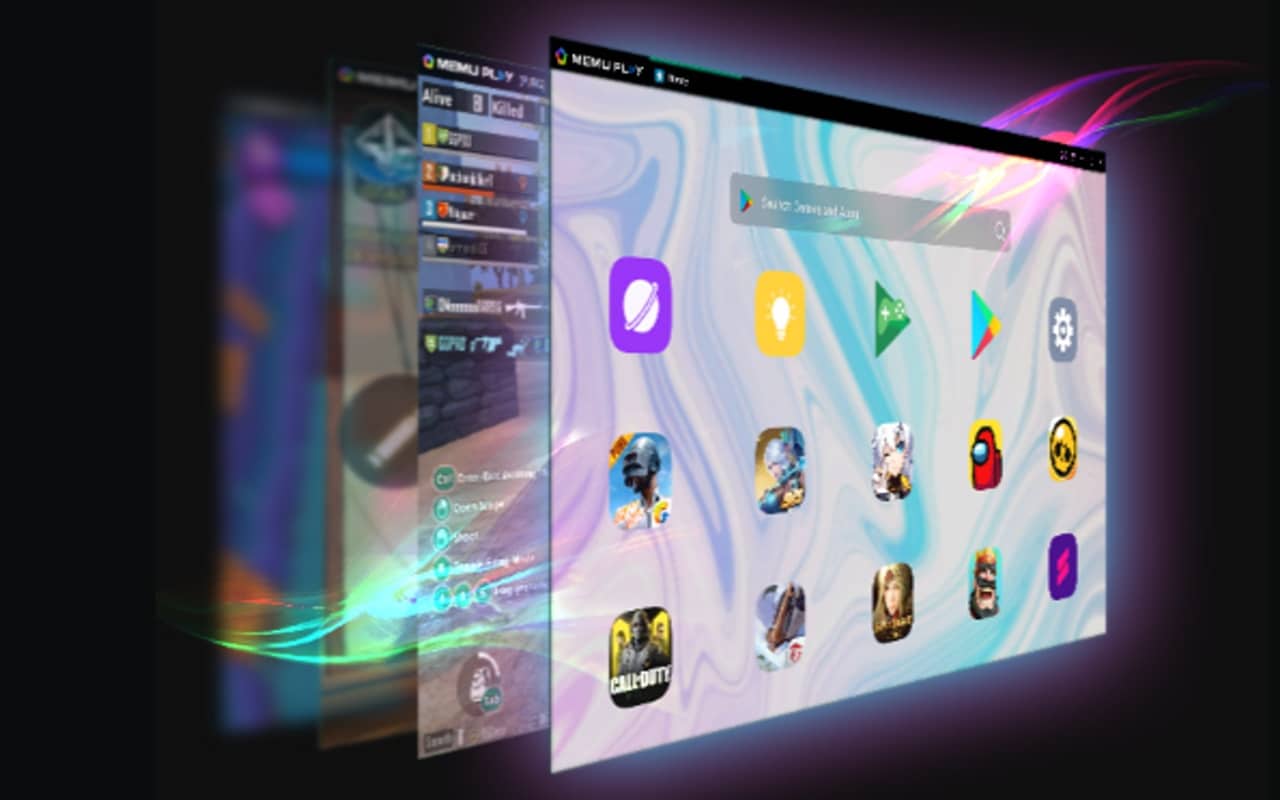
Besides playing retro consoles on your mobile device , you can also use Android emulators on your PC to enjoy your mobile games on a big screen . Options like BlueStacks, NoxPlayer, or LDPlayer allow you to run Android applications more smoothly and comfortably, taking advantage of your keyboard, mouse, or gamepad.
Among the main advantages we find:
- Larger screens for improved gameplay
- More precise controls and superior ergonomics
- Ability to run multiple apps or games at the same time
- Improved graphics performance in demanding games thanks to PC hardware
Always download emulators from their official websites to ensure compatibility and security. These programs are not the same as the retro emulators we've seen before: these are applications that create a virtual Android environment on Windows, macOS, or Linux to run apps and games designed for mobile devices. They require virtualization to be enabled, sufficient resources, and some patience during installation.
If your goal is to play retro emulators on your PC, there are also desktop versions of RetroArch, PPSSPP, Dolphin, DuckStation, and others. In that case, a computer usually offers better performance and allows the use of monitors, controllers, and more advanced configurations. The choice depends on whether you want to play mobile games on a big screen or if you prefer to emulate classic consoles with more power.
Legality and safety: key aspects in emulation
It's crucial to understand that using emulation software is legal, as long as you don't distribute commercial ROMs without permission . Most developers and communities recommend using only backups of games you own physically or that are in the public domain.
When downloading emulators or ROMs, always do so from verified sources to avoid viruses, malware, or legal issues. Some legal, open-source emulators like RetroArch are available in official stores, which guarantees their safety.
The legality of ROMs varies by country, and backup regulations aren't identical everywhere. Furthermore, downloading games you don't own is often considered copyright infringement, even if the emulator itself is a legitimate tool. BIOS files may also be protected, so it's advisable to extract them from your own console when legally permitted.
Don't trust websites that promise miraculous downloads, modified APKs, or bundles with thousands of games. Besides the legal risks, they may contain malware, miners, adware, or request unauthorized permissions. Always check the developer's name, reviews, the permissions requested, and the repository's reputation.
Remember that the best experience is achieved by respecting both the legality and ethics of emulation . This helps developers continue to improve their applications and keeps the passion for classic games alive.
Android emulation is now a huge gateway to video game history, but it also comes with responsibility. Choosing the right emulator, fine-tuning performance, using controllers when necessary, and respecting copyrights allows you to enjoy thousands of hours of gameplay without sacrificing the convenience of your mobile device. Whether you prefer RetroArch for an all-in-one solution, or opt for PPSSPP, Dolphin, NetherSX2, Azahar, DuckStation, or Redream for specific systems, the important thing is to experiment, fine-tune, and save your games. With a well-organized library and responsible use, your Android device can become one of the best retro consoles you've ever owned.
Table of Contents
- 1 Why use emulators on Android?
- 2 How to choose the best emulator for Android
- 3 RetroArch: The Ultimate Multi-System Emulator
- 4 PPSSPP: The PSP Standard on Android
- 5 My Boy!: The Best Option for Game Boy Advance
- 6 DraStic DS Emulator: Nintendo DS in its Purest Form
- 7 Dolphin Emulator: Wii and GameCube on your Android
- 8 ClassicBoy: The All-in-One for Nostalgics
- 9 NetherSX2 and PS2 emulation on Android
- 10 Azahar, Citra and Nintendo 3DS emulation
- 11 DuckStation, ePSXe and FPse: PlayStation 1
- 12 M64Plus FZ, MEGA N64 and Tendo64: Nintendo 64
- 13 Redream and Reicast: Dreamcast
- 14 Other essential emulators for Android
- 15 Key tips for making the most of Android emulation
- 16 Free or paid emulators? Options and differences
- 17 Emulators for PC: Bring Android to your computer
- 18 Legality and safety: key aspects in emulation