

Today I want to continue with these basic video tutorials for users of Android and explain to them in a totally visual way, the correct way to always have all our contacts well synchronized and well guarded.
In today's Android video tutorial , I'll show you step-by-step how to use your free Gmail account to synchronize all your contacts with all your devices, including your personal computer.
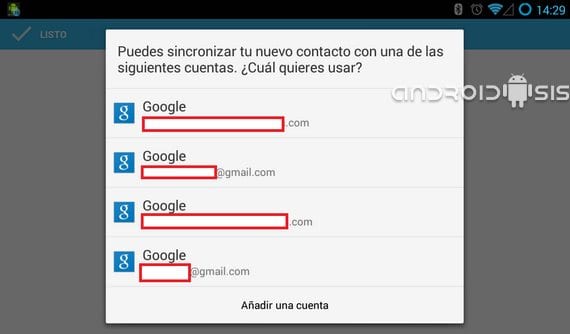
As you can see in the Android video tutorial I've created, the steps are very simple; you just need to select the Gmail account you want to use before saving the new contact.
This allows us to synchronize our contacts saved in the selected account on any Android device simply by adding the account and selecting the option to synchronize Gmail contacts on Android. Furthermore, they are always safely stored on Google 's servers . What better backup than this?
Importance of cloud synchronization
It's crucial to understand that contacts are stored in different places. Some are saved on the device's internal storage or on the SIM card . The problem is that these local contacts don't automatically sync; if the device is damaged or lost, that information will be gone forever.
When using Google Contacts , your information is stored in the cloud. This ensures that when you log in to a new phone or tablet, your entire address book will automatically appear . Furthermore, this system is ideal if you decide to transfer your contacts from Android to iPhone , as the cloud acts as a bridge.

How to sync device and SIM contacts with Gmail
To prevent contacts from being trapped in your phone's memory, you can activate automatic synchronization by following these detailed steps:
- Open the app Configuration or your device settings.
- Access the section of Google and look for the option "Settings for Google apps".
- Choose "Google Contacts Sync".
- Activate the option "Automatically sync device and SIM contacts".
- Choose the Google account where you want the backup to be performed.
It's important to note that this feature depends on the device model and brand . In some cases, you can manage this directly from the Google Contacts app by going to "Fix and manage" and adjusting the sync settings there.
Synchronization of contacts on computers and other systems
The versatility of Google Contacts lies in the fact that it's not limited to just mobile devices. You can sync your address book with a computer, tablet, or any device with internet access. The best part is that when you change a contact's information on any platform, the change will be applied instantly to all other linked devices.
If you use a computer to manage your professional or personal life, here's how to integrate your Google account depending on the operating system:
Configuration on Mac computers
For those users who use the Apple ecosystem but prefer Google's contact management, the process is very simple:
- Open the menu System preferences on your Mac.
- Find and click on the section Internet accounts.
- From the list, select the option to Google(If you wish to use a different account, use the button) "Add Google" located in the lower left corner).
- Enter your email and the associated password. Click Next.
- In the services to synchronize menu, check the box for Contacts.
- Click on Ready to finish the process.
Configuration on Windows computers
On Windows devices, integration is achieved through system account settings so that the calendar is available in native applications:
- Open the menu Configuration of Windows.
- Go to the section of Accounts and then select "Email accounts and applications".
- Click on the option "Add a Google account".
- Enter your email and your password.
- Check the Access permits that Google requests and click on Allow.
- Click on Ready and your schedule will be linked to the system.

Alternative methods for importing contacts
If you're having trouble with automatic synchronization or need to move data from one computer to another, there are other effective ways to ensure your information is complete:
- Direct import: In Settings > Accounts > Google, you can check the box for «Contacts» to activate data download from the cloud to the mobile device.
- Use of external managers: If you don't have a Gmail account set up, you can export your contacts Download them from the Google website in file format and then import them to the device using mobile management tools via USB or Wi-Fi.
- Move contacts manually: From the Contacts app, in the menu of Settings, you can select "Move contacts from device" and choose the destination Gmail account.

Additional benefits and advanced management
Syncing with Gmail isn't just a security measure. It lets you fully customize your address book . You can add photos to contacts, save birthdays or important appointments, and include physical addresses that open directly in Google Maps with a single click.
Furthermore, as I mentioned earlier, you'll have full access from any personal computer . Simply open your browser and go to the Gmail website or contacts.google.com to edit, delete, or add new numbers with the convenience of a physical keyboard, which is much faster than typing on a touchscreen.
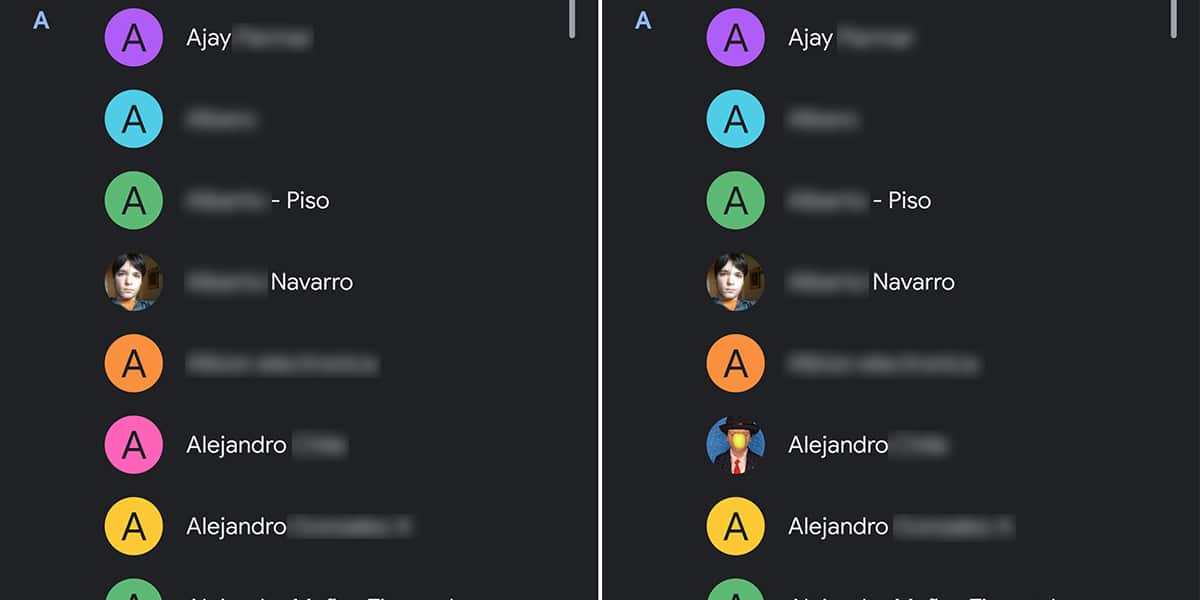
Another key point is visibility . From the options menu (three dots) in your contacts, you can choose "Contacts to show" to filter whether you want to see only those from your SIM card, your phone, or your Google account. This is especially useful if you have multiple linked accounts and want to avoid duplicates.
If you decide to stop syncing , remember that contacts already uploaded to the cloud will remain there, but new changes on your device won't be reflected in Google. Be aware that in recent versions of Android, disabling syncing may hide cloud contacts on your phone, although it doesn't permanently delete them.
So, if you're a newcomer to this amazing world of Android , be sure to visit our YouTube channel where you'll find the best Android video tutorials for all levels and needs. And if you like it, subscribe to automatically receive notifications of new videos.
We're waiting for you, we're almost at 2000 subscribers !!
More information – Gmail settings on Android , Contact display options on Android
Keeping your address book linked to a Google account is the most efficient strategy to avoid losing critical data and facilitate the transition between devices, allowing centralized and multi-platform management of your entire network of contacts.
Table of Contents
