

We continue with the tips and tutorials for WhatsApp, this time showing you 2 ways to back up your WhatsApp data to keep all your received files, photos, and videos safe in case you need to format your device or change devices.
It's crucial to understand that a backup is essentially a duplicate of all the information stored on your device. In the case of WhatsApp, this allows you to recover chats, photos, videos, and documents in case of theft, loss of your phone, or technical issues. Unlike other apps, WhatsApp doesn't automatically save data to the cloud unless the user configures it, so relying solely on your phone's internal storage is risky.
Previously, in earlier versions of the popular app, backing up to Android's internal storage was as simple as going to the app's Settings and tapping on Chats and calls . Now, with full cloud integration via Google Drive, these options have evolved. Therefore, I've created this video tutorial explaining all the details for performing backups, both to the cloud and manually.
2 Ways to Backup WhatsApp
1st - In the cloud in your Google Drive account
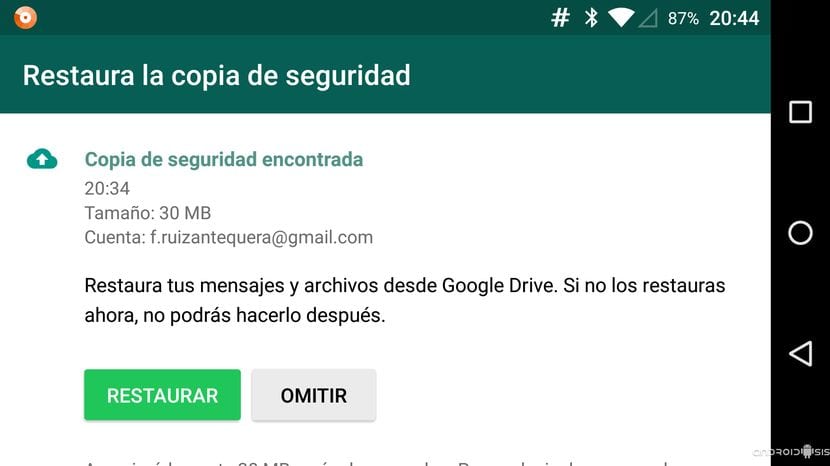
The easiest way to back up your WhatsApp data is through Google Drive. This is a free account linked to any Gmail user. To set this up on Android, follow this path: WhatsApp > Menu (three dots) > Settings > Chats > Chat backup.
Within this menu, we can manage the frequency with which data is saved. We have the option to choose between automatic or manual saving . The available frequency options are:
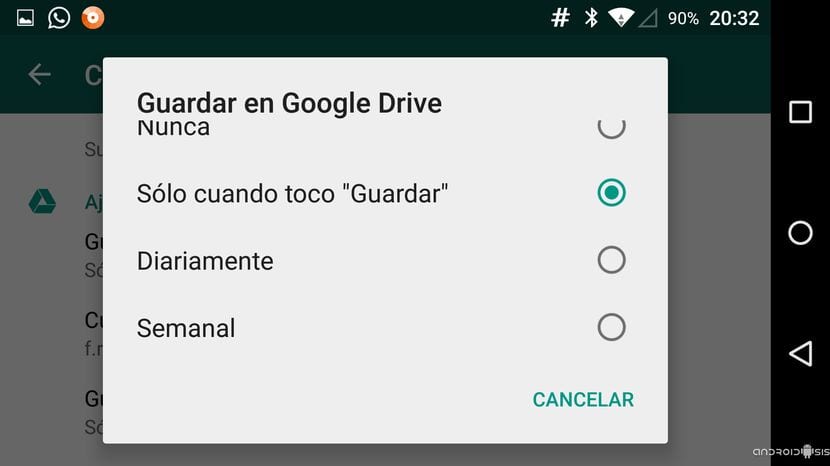
- Never: Turn off automatic copying.
- Only when I tap save: Immediate manual copy.
- Daily: Ideal for not missing a single message.
- Weekly: A balance between data consumption and security.
- Monthly: Recommended for users with limited storage space.
In addition to the backup frequency, it's vital to configure the Gmail account where the data will be stored, especially if you manage multiple Google accounts on the same device. You can also choose whether the backup is performed only via Wi-Fi or if you want to allow the use of mobile data by enabling the corresponding option. Furthermore, it's essential to check the "Include videos" box if you want larger multimedia files to be backed up as well.
2nd - Option to backup WhatsApp manually
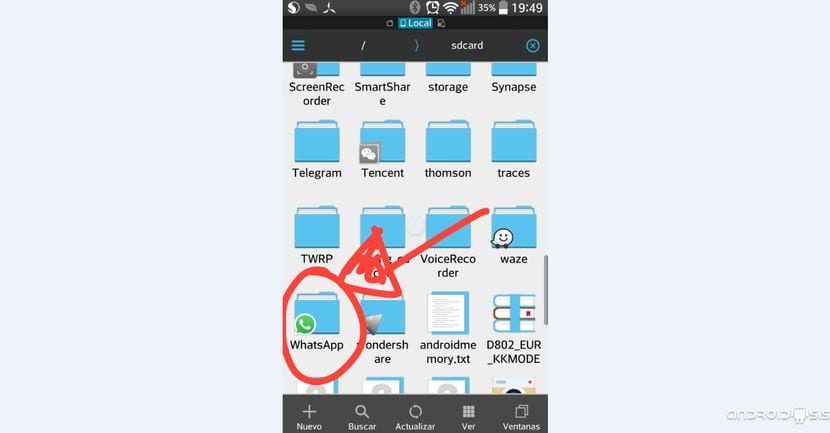
There are situations where we don't want to rely on the cloud. Manually backing up your data involves copying the WhatsApp folder that's created by default in your Android device's internal storage. This is done by copying and pasting the folder using a file explorer.
In the video tutorial we used ES File Explorer , a free and very powerful tool available on the Play Store, although any file manager will work to move the folder from internal memory to a microSD card or a computer.

Another free alternative for backing up chats without using Google Drive is exporting individual chats . From Settings > Chats > Chat history, you can select "Export chat ." This allows you to send the history of a specific conversation to an email address, Dropbox, or OneDrive as a text file.
How to restore WhatsApp backup

To recover your data, you must use the same phone number and Google account (on Android) or Apple ID (on iOS) that you used to create the backup. If you change the account or number, the app won't detect the backup file.
On Android , after installing WhatsApp from the Play Store and verifying your number, the app will automatically search Google Drive. If it finds a backup, it will request permission to restore the data . This process may take several minutes depending on the size of the files and the quality of your Wi-Fi connection.
On iOS (iPhone) , the process is similar but it syncs with iCloud . Upon reinstalling the app and verifying the number, the Apple cloud backup will be detected and the chats and media will be downloaded.
Transferring chats to a new device
If you've purchased a new phone, you can transfer your data by following these essential steps:
- Create updated copy: On the old phone, go to Settings > Chats > Backup and tap "Save".
- Install WhatsApp: Download the application on the new device and register with the same number.
- Restore: Choose the option to restore from the cloud or, in recent versions, use the option "Transfer from the old phone" via Wi-Fi Direct.
It's important to note that it's not possible to combine two different chat histories; if you restore an old copy, the history created on the new phone will be replaced.
Common mistakes and advanced security

One of the most frequent problems is insufficient storage space in Google Drive or iCloud, which interrupts the upload process. To avoid this, check your account storage regularly. Another error is trying to restore messages with a different phone number, which is not supported.
Regarding privacy, WhatsApp now offers end-to-end encryption for backups . This option adds a unique password or key to the backup stored in the cloud, preventing even Google or Apple from accessing the content of your conversations.
To maximize security, it's recommended to enable two-step verification and use strong passwords for linked accounts. This ensures that even if someone gains access to your email account, they won't be able to download your message history without the security key.
Finally, for those looking for extra features, you can also download WhatsApp Plus , which enhances the messaging client's performance and offers various advanced customization options.
Properly configuring backup frequency and enabling encryption ensures that all your personal and professional information is protected against unforeseen events, such as device theft or a critical operating system error. Maintaining an up-to-date backup in the cloud and occasional manual backups is the best strategy to never lose a memory or important data.
Table of Contents