

Protecting what we share via email is no longer optional: it's essential. Gmail has a feature designed precisely for this purpose: Confidential Mode. This mode adds safeguards to prevent sensitive information from being shared excessively. In this practical guide, I'll explain everything you need to know to use it as a user and how to manage it if you administer Google Workspace, with clear instructions and realistic advice on its limitations and advantages. The goal is for you to send sensitive data with greater control and less risk.
Before we begin, it's important to understand something: confidential mode isn't magic or absolute security. It prevents common actions like forwarding or downloading, but it can't stop someone from taking a screenshot or a photo of the screen. If the recipient wants to compromise your trust, there are always ways to copy the content . That said, it's a very useful tool that reduces errors, adds expiration dates, and includes extra layers of protection like SMS codes to open messages.
What is Gmail's confidential mode and what does it do?

Confidential mode is an advanced Gmail feature designed to ensure maximum privacy when sending emails. It's the ideal method for transmitting sensitive information, personal data, or private documents, ensuring that only the designated recipient can access the content under the conditions set by the sender.
When this mode is activated, Gmail imposes strict restrictions on the message and its attachments. Specifically, it disables the forwarding, copying, printing, and downloading options . This means the recipient cannot simply click "forward" to distribute the information to others or save the attachment to their local drive in the usual way.
In addition to these restrictions, confidential mode offers three fundamental pillars of control:
- Use by dateYou can define an exact timeframe after which the message will no longer be available.
- Immediate revocationYou have the power to remove access to the message at any time, even before the deadline expires.
- Identity checks: Allows requiring a security code sent by SMS to validate that the person trying to open the email is indeed the intended recipient.
This tool is available to both personal Gmail users and all editions of Google Workspace . By providing these layers of security, it drastically reduces the risk of sensitive information being accidentally circulated or shared without authorization.
How confidential messages work inside
To understand the usefulness of confidential mode, it's necessary to understand that Gmail changes how messages are delivered. In a traditional email, the body and attachments travel directly to the recipient's server. However, in confidential mode, Gmail removes the message body and attachments from the copy the recipient receives.
Instead, Google generates a secure link that points to the content stored on Google's servers. The behavior varies depending on the email client the recipient uses.
- Gmail usersThe link is automatically rendered, so the message looks like a normal email, but with the copy and forward functions disabled.
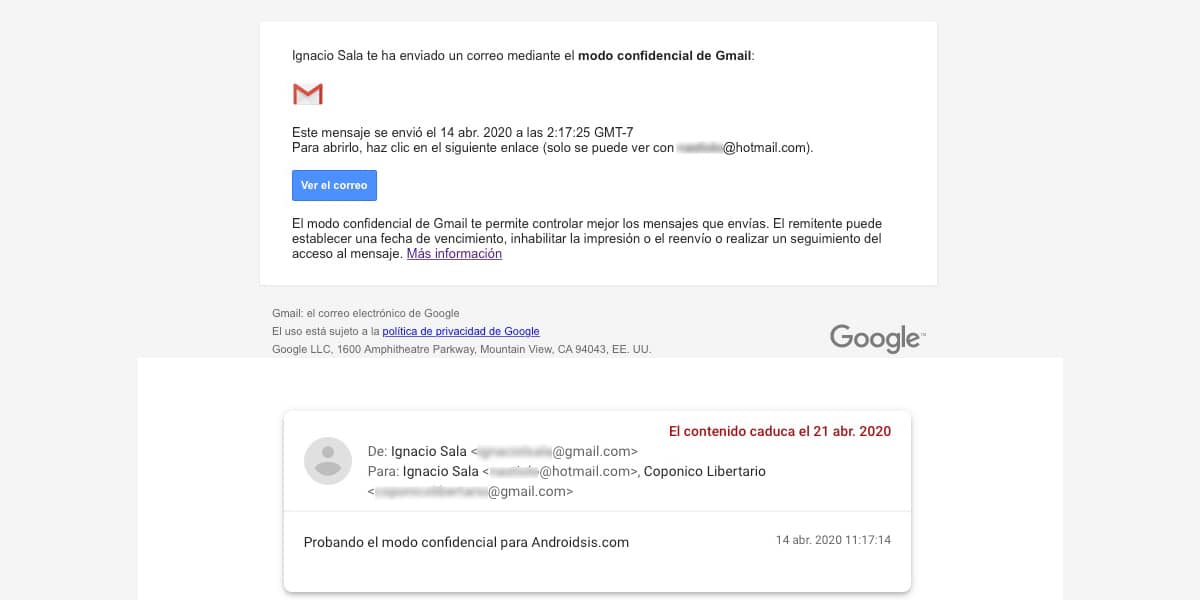
- Users of other providersThey receive an email with a link such as "view email" or "view message". Clicking on it redirects them to a secure Google page where they can read the content.
It's important to note that confidential mode and scheduled delivery are incompatible . If you need an email to arrive on a specific date or time using the "Schedule Delivery" feature, you cannot activate confidential mode. You'll have to choose between the security of confidentiality and the convenience of scheduling.
Limitations and warnings you should keep in mind

While confidential mode is a powerful tool, it shouldn't be considered a military-grade encryption system or absolute security. The barrier is technical, not physical . A malicious actor can always use external methods to copy the information, such as taking a screenshot , photographing the data with another mobile device, or using specialized malware to extract the contents of the browser's memory.
Regarding SMS verification, there are geographical restrictions. This option is only available for phone numbers in specific regions such as North America, South America, Europe, Australia, and certain Asian countries (like Korea, India, and Japan). If you try to send a code to a number outside of these areas, the system will not allow the transaction.
In addition, it's vital to be wary of phishing . Some attackers use the appearance of confidential mode to trick users, sending fake emails that urge the recipient to click on an external link to "view the confidential message," thus redirecting them to fraudulent pages to steal their credentials.
Send a confidential email from Gmail step by step
Activating this feature is an intuitive process, but it requires attention to the security settings. Below, we detail the process depending on the device you are using.
From the computer (Web)
- Access your Gmail account and click the button Write to open the new message window.
- In the bottom toolbar (where the send button and attachments are located), look for the padlock icon with clockClick on it to activate confidential mode.
- A dialog box will open where you will need to configure two critical aspects:
- Use by dateChoose the term (from one day to five years).
- Require passwordSelect whether you want to use the "No password via SMS" option (direct for Gmail, code by email for others) or "Password via SMS".
- If you choose the password by SMS, enter the recipient's phone numberIt's a common mistake to include your own code; remember that the code must reach the person who receives the email.
- Click on Save and proceed to send your message.
From Android and iOS devices (App)
- Open the Gmail app on your mobile phone or tablet and tap on Write.
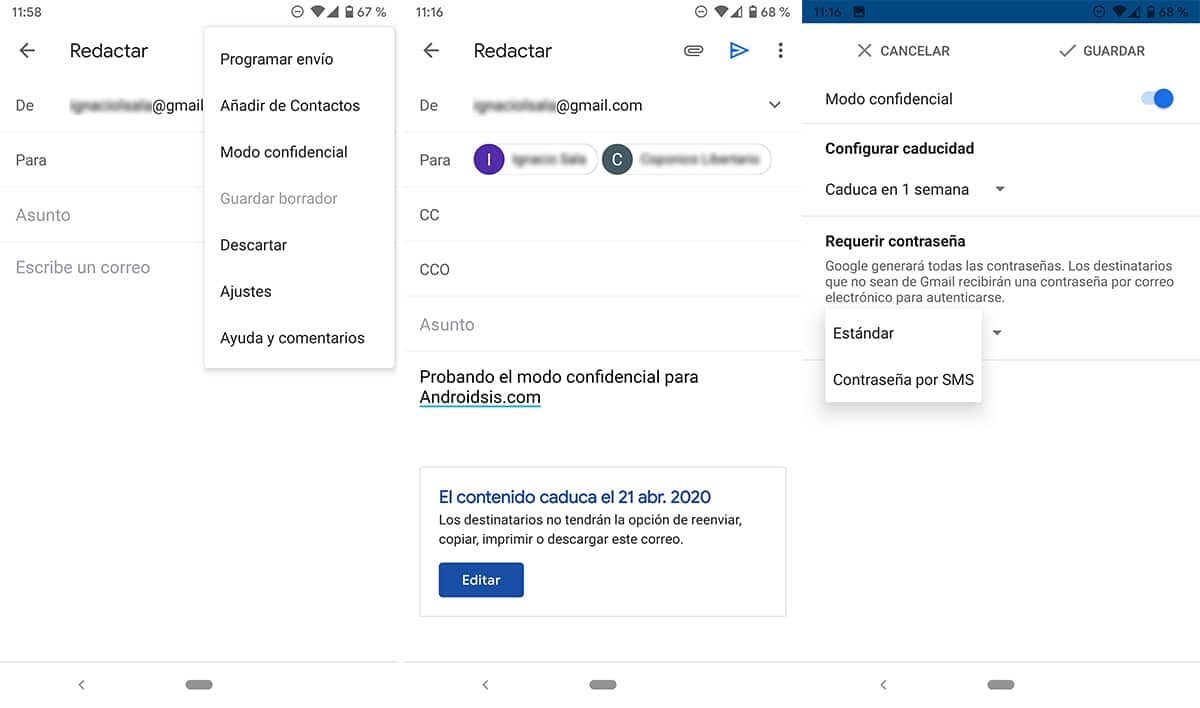
- In the upper right corner, tap the menu three vertical dots (Plus).
- Select option Confidential mode.
- Activate the confidential mode switch and adjust the expiration date and password method according to your needs.
- Press on Done or Save and send the email.
Expiration, revocation, and passwords: how to choose well
The choice of security parameters depends entirely on the level of risk and the relationship with the recipient. Sending a temporary server password is not the same as sending a legal contract.
Strategies for expiration : If the content is extremely sensitive and only needs to be read once, opt for a one-day expiration . If the recipient is someone who doesn't check their email daily, allow a week. Longer expiration periods (months or years) are useful for reference documents that shouldn't be permanently downloadable.
Password strategies :
- No password via SMSIt's the most balanced option. It offers convenience to Gmail users and a basic layer of security (code per email) for everyone else.
- Password by SMSThis is the highest level of security. It requires two-factor authentication (email and mobile phone), ensuring that only the owner of that phone line can read the message.
Withdraw access before the expiration date
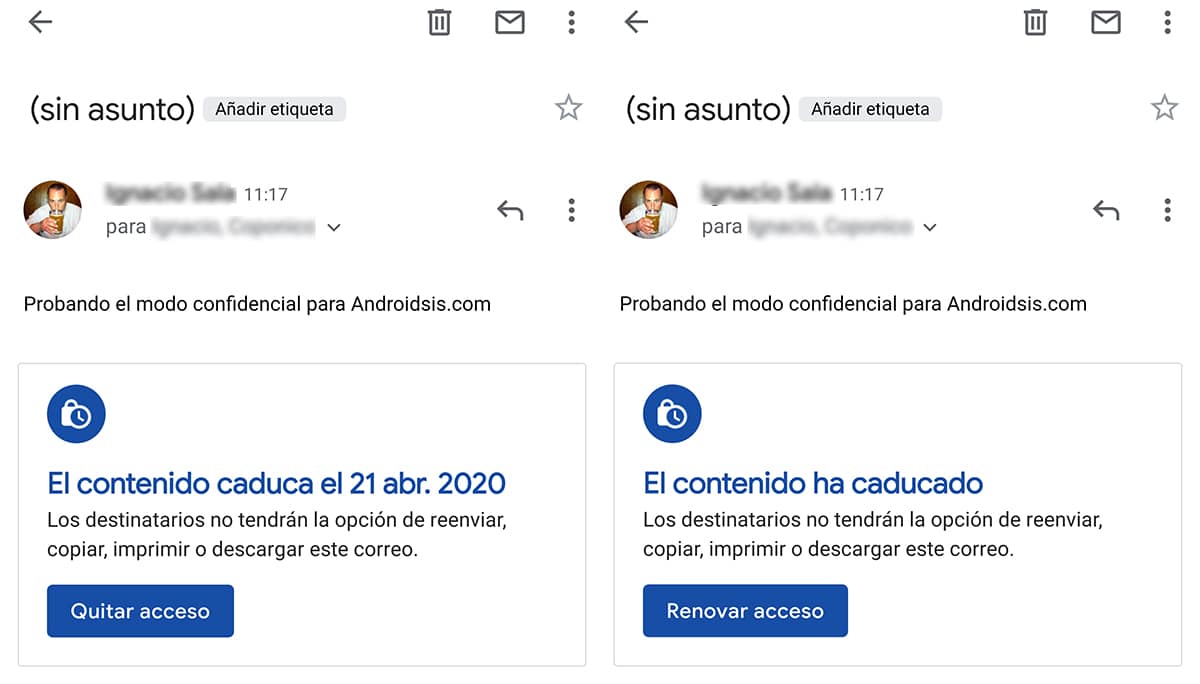
One of the most powerful advantages of this method is the ability to change your mind . If you realize you've sent the information to the wrong person, or if circumstances change and you no longer want the recipient to access the content, you can revoke permission instantly.
- Log in to Gmail from your computer.
- Go to the folder envoys in the left side panel.
- Locate and open the message that was sent in confidential mode.
- Click on the option Remove access.
Doing this will immediately stop the link the recipient received from working. Although the email will still appear in their inbox, when they try to open it, they will see a message indicating that the content is no longer available.
Open a confidential email as a recipient
The recipient's experience varies depending on their email client and the sender's settings.
If you use Gmail : The process is seamless. If there's no SMS password, the message opens normally. If the sender has enabled SMS, you'll see a " Send password" button . Clicking it will send the code to your phone, which you'll need to enter on the Gmail screen to unlock the content.
If you use another email client (Outlook, Yahoo, etc.) : When you open your email, you'll see a button that says " View email ." This will take you to a secure Google webpage. Depending on your settings, you'll be asked to sign in to a Google account or enter a verification code sent to your email or mobile phone.
Common mistakes when opening or sending
It's common to encounter some technical obstacles. Here we address the most common ones:
- "The message has expired or access has been revoked"This occurs when the time limit has expired or the sender has used the option to remove access. The only solution is to contact the sender and ask them to extend the deadline or resend the message.
- The SMS code is not arrivingCheck that the sender entered the correct number with the appropriate international prefix. It could also be due to mobile network issues or the country not supporting the feature.
- Unable to download attachmentsThis is not a bug; it's expected behavior. Confidential mode blocks the download to prevent files from spreading beyond the sender's control.
Availability and reach in organizations
For businesses using Google Workspace , confidential mode is a compliance tool. Administrators have full control over who can use this feature and how it affects the company's data flow.
Confidential mode is available in all editions of Workspace. However, its implementation may conflict with some external archiving or eDiscovery policies, as the message body is not sent via SMTP but instead uses a link. This means that some external auditing tools might record the subject and the link, but not the actual message content.
Administrators: Turn confidential mode on or off
If you are an IT administrator, you can manage the availability of this feature to prevent users from sending information in a way that the company cannot audit, or conversely, to encourage its use in sensitive departments such as Human Resources or Legal.
- Access the Google Admin Console.
- Navigate through the menu: Apps > Google Workspace > Gmail > User settings.
- Find the section Confidential Mode.
- Check or uncheck the box Enable confidential mode.
- Click on Save.
For more granular management, you can apply this change only to a specific Organizational Unit (OU) . For example, you can enable it for the Accounting team and disable it for the Sales team by selecting the corresponding OU in the left panel before changing the settings.
Administrators: Block incoming emails in confidential mode
Some organizations prefer to block the receipt of confidential external messages because they prevent the content inspection necessary to detect malware or comply with data retention laws.
To achieve this, you must create a compliance rule :
- In the management console, go to Gmail > Compliance.
- In the "Content Standards Compliance" section, click on Setup or add a new rule.
- Give the rule a name (e.g., "Block Confidential Emails") and check the box Starters.
- In the expressions section, select Match with metadata.
- In the Attribute drop-down menu, choose Gmail Confidential Mode and in Match Type select The message is in Gmail's Confidential mode..
- In the action to take, select Reject messageYou can add a custom rejection message to inform the external sender about your company's policy.
- Save your changes. Note that propagation may take up to 24 hours long..
Confidential messages and Google Vault
For companies using Google Vault for retention and eDiscovery, confidential mode behaves differently. Vault can block, hold, and export confidential messages sent by domain users.
To make this possible, Gmail attaches a hidden copy of the content to the recipient's message, but with strict conditions:
- This only occurs if the sender and recipient belong to the same organization.
- Only Google Vault has access to this copy; neither the sender nor the recipient can see it in their inboxes.
- No external archiving tool can access this copy.
If you need to permanently delete all copies of a confidential message, you must delete the email from both the sender's account and all recipient accounts.
Good practices and security recommendations
The key to making confidential mode effective is its smart use. It's not about using it in every email, but about applying it with professional judgment.
When to use it?
- Send of personal data (ID card, passports) or digital certificates.
- Sharing temporary passwords or links to servers that are set to expire.
- Sending contracts, bank statements or sensitive financial reports.
- Internal communications that must be strictly restricted to one recipient.
Additional tips :
- Always verify the phone number Before sending an SMS code. An error here means the recipient will never be able to read the message.
- Combine with encryptionFor extremely sensitive data, consider encrypting the attachment with a separate password before uploading it to the confidential email.
- Don't abuse the functionAdding extra steps (such as SMS) can irritate recipients if the information does not justify such a level of security.
Key questions about the recipient experience
To avoid confusion, it is helpful to anticipate the doubts of the person receiving the message.
What exactly happens when the deadline expires?
The content (text and attachments) disappears from the access server. The email remains in the inbox as an empty shell, but when you try to open it, the expiration notification appears.
Can it be combined with the shipping schedule?
No. Currently, Google does not allow scheduling the delivery of a message that is in confidential mode. You must choose between access control or delivery time control.
Can the recipient know that the message is confidential before opening it?
Yes, the message usually includes a visual notification or warning indicating that confidentiality restrictions have been applied.
Common use cases in the professional environment
Confidential mode shines especially in scenarios where legal compliance and privacy are paramount:
- Human ResourcesSending job offers, salary details, or performance evaluations that should not be forwarded to other employees.
- Legal DepartmentsSending draft contracts or legal notices with short validity periods.
- Technical supportSending temporary access credentials to a test environment that must expire in 24 hours.
- Administration: Sending tax information or account numbers for bank transfers.
Quick steps on mobile and desktop
For those who need an executive summary of the process:
On Desktop : Compose $\rightarrow$ Lock/Clock Icon $\rightarrow$ Configure Time and SMS $\rightarrow$ Save $\rightarrow$ Send.
On Mobile (Android/iOS) : Compose $\rightarrow$ Three-dot menu $\rightarrow$ Confidential mode $\rightarrow$ Activate and Configure $\rightarrow$ Done $\rightarrow$ Send.
If you detect an error after sending, the quickest action is to go to Sent Items $\rightarrow$ Open email $\rightarrow$ Remove access.
Tips for administrators when deploying the feature
If you're going to implement confidential mode in your company, don't just do it at a technical level; do it at an organizational level.
First, educate users . Explain that confidential mode doesn't prevent screenshots, so they don't blindly rely on it for critical trade secrets. Second, establish a recommended expiration policy based on the data type (e.g., 7 days for administrative documents). Finally, align the feature with your archiving tools . If you use third-party software to store emails for legal reasons, ensure the confidential link is sufficient, or if you prefer, disable the feature to enforce the use of secure shared folders in the cloud.
This Gmail tool offers a practical balance between security and usability. While not a foolproof solution against malicious users, it drastically reduces the likelihood of accidental data leaks and gives the sender unprecedented control over the lifespan of their information. By integrating these practices with a cybersecurity culture and clear policies, any user or organization can significantly enhance the protection of their daily communications.
Table of Contents
- 1 What is Gmail's confidential mode and what does it do?
- 2 How confidential messages work inside
- 3 Limitations and warnings you should keep in mind
- 4 Send a confidential email from Gmail step by step
- 5 Expiration, revocation, and passwords: how to choose well
- 6 Withdraw access before the expiration date
- 7 Open a confidential email as a recipient
- 8 Common mistakes when opening or sending
- 9 Availability and reach in organizations
- 10 Administrators: Turn confidential mode on or off
- 11 Administrators: Block incoming emails in confidential mode
- 12 Confidential messages and Google Vault
- 13 Good practices and security recommendations
- 14 Key questions about the recipient experience
- 15 Common use cases in the professional environment
- 16 Quick steps on mobile and desktop
- 17 Tips for administrators when deploying the feature