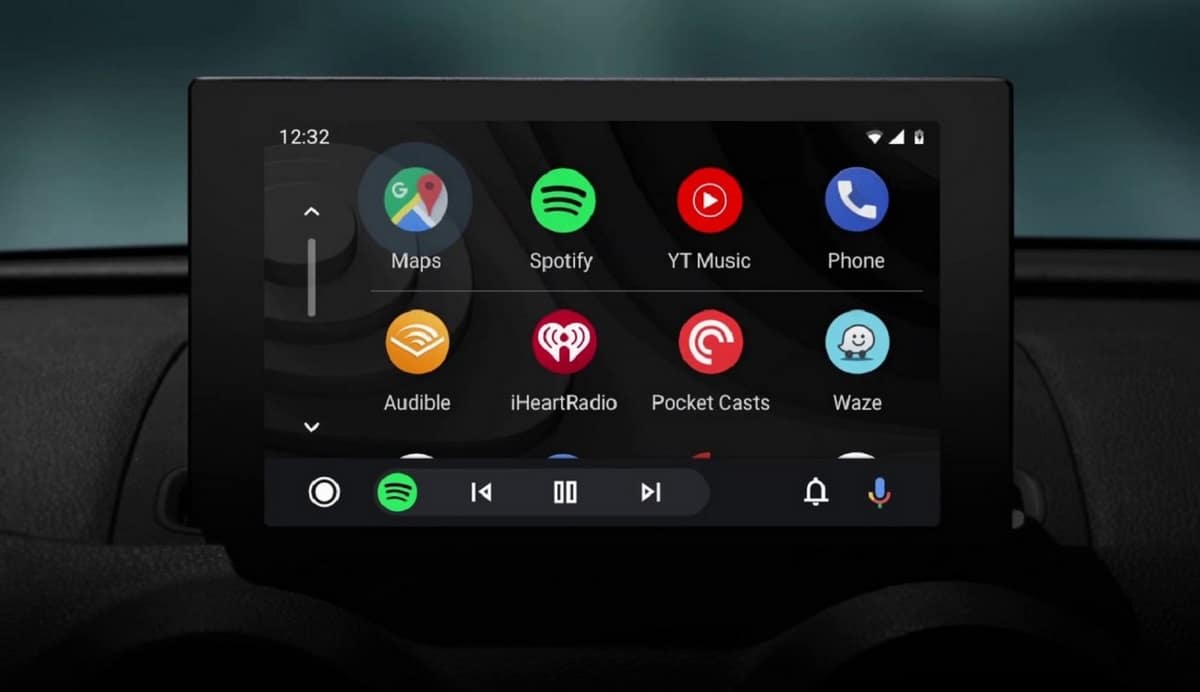
Planning a long road trip involves much more than packing your bags, checking tire pressure, or making sure you have a full tank of gas. More and more people are relying on their tech devices to make the journey easier, stay in touch with family and friends, or enjoy top-notch entertainment while covering hundreds of miles. In this context, Android Auto has become the ideal companion for traveling safely and comfortably , but to get the most out of it, it's essential to set it up properly before hitting the road.
If you're someone who uses Android Auto for your commute, you know how frustrating unexpected glitches, a cluttered interface due to too many apps, sudden data connection drops, or distractions from constant notifications can be. Leaving these details to the last minute can ruin your driving experience, so preparing and customizing Android Auto in advance is key to enjoying a safe and smooth journey . Below, we'll show you everything you need to do and consider before setting off on a long trip, so you can focus solely on enjoying the ride.
Update and prepare Android Auto and your apps before you go

One of the most important steps is to keep Android Auto and all associated apps you'll be using on your trip up to date. The latest versions not only fix bugs and improve system stability, but they also often include new features that can be incredibly useful on the road. Plus, you'll have greater compatibility and fewer chances of encountering unexpected problems precisely when you're relying on technology the most.
It's crucial to avoid beta versions right before a long trip. While they allow you to try out new features, they often contain unresolved bugs that can cause unexpected system crashes or restarts mid-journey. Always check the version number, and if you're unsure whether your version is the latest stable one, download it from the Google Play Store. If the update isn't available in your region, you can use reliable sites like APKMirror to perform a manual installation.
Don't forget to update your map, music, and messaging apps . The integrations between these apps and the infotainment system are constantly evolving; an outdated version of Spotify or Waze could cause synchronization errors or a slow interface response.
Delete and sort apps in Android Auto

Over time, it's easy to accumulate apps we tried once and never used again. Having too many apps installed makes the Android Auto menu chaotic and unintuitive , creating unnecessary distractions when we need to quickly find the right app while driving.
To optimize this space, go to Android Auto settings on your phone and review the list of compatible apps. Remove or hide any apps that aren't useful for driving. This not only cleans up the interface visually but also reduces the driver's cognitive load, allowing them to stay focused on the road.
Additionally, Android Auto allows you to customize the order of the app menu . By default, the system usually orders them alphabetically, but you can change it to a custom order . To do so, follow these steps:
- Access the Android Auto settings on your mobile device.
- Select option "Customize app menu".
- Tap on "Order application menu" and choose the custom order option.
- Drag and drop apps to place the ones you use most often (like Google Maps, Spotify, or your podcast app) at the front.
This way, you achieve a clean and efficient interface, where critical tools are always within easy reach with a quick touch.
Clear the cache for greater system stability

Continued use of Android Auto can lead to the accumulation of temporary files, which can sometimes cause errors, unexpected crashes, or app loading problems. Therefore, before setting off, it's highly recommended to clear the Android Auto cache . This simple maintenance usually resolves most common issues without deleting your custom settings or important data.
You don't need to do this on every short trip, but it's essential before longer journeys or at least once or twice a year. To do it, go to your phone's general settings , open the applications menu, find Android Auto, go to the storage section, and tap 'Clear cache' . You'll notice the system runs more smoothly and reliably, preventing unpleasant surprises during the most critical moments of your trip.
Configure vehicle access and security

For the most convenient experience possible, it's a good idea to enable the option that allows you to start Android Auto even with your phone locked . This way, if the connection is lost or reset while you're driving, you won't have to remove your phone or manually unlock it to reconnect. This prevents dangerous situations while driving.
It's important to note that this feature comes with a privacy consideration : when starting the system with your phone locked, some message notifications may appear on the screen and be visible to passengers. If you're traveling with trusted individuals, this is the most convenient option; otherwise, consider whether you prefer to keep your phone locked for security reasons.
Regarding connectivity, if you're still using a cable, make sure you have a high-quality one in perfect condition . Many intermittent disconnection issues are due to faulty USB cables or cables that don't support the data transfer required for Android Auto. We recommend carrying a spare cable to avoid any surprises.
Wireless vs. Wired Connection: The Battery Battle
For short trips, wireless connectivity is the ultimate convenience. However, for long journeys, Android Auto drains the phone's battery due to the simultaneous use of GPS, mobile data, and screen mirroring. If the trip lasts for hours, the device is very likely to run out of power if not managed properly.
The best strategy for long trips is to prioritize wired charging , ensuring your phone charges while in use. To prevent your phone from attempting to connect wirelessly (and draining battery) after a pit stop, you can disable wireless charging in developer settings.
- Go into the Android Auto settings on your mobile device.
- Tap repeatedly on the "Version" until Developer Settings are enabled.
- Access that menu and look for the option "Android Auto wirelessly".
- Uncheck the box to force the system to always use the cable.
Customize and manage notifications to avoid distractions

One of the main advantages of Android Auto is that it allows you to manage and filter all notifications to make them as unobtrusive as possible. Receiving constant alerts can be annoying and, above all, dangerous. We recommend taking advantage of the filtering options to show only what's strictly necessary.
You can mute incoming message sounds so they don't interrupt your music or conversations with your passengers. Also, if you're traveling with others and want to protect your privacy, you can configure the system to not display message previews on the car's screen, preventing others from reading your private conversations.
For complete control, you can enable "Do Not Disturb" mode , which blocks all unnecessary alerts, keeping only urgent calls or notifications from critical apps. Remember that you can always ask Google Assistant to read your messages when you feel it's a safe time, instead of letting the system interrupt you randomly.
Create smart shortcuts and shortcuts
To avoid navigating through complex menus, Android Auto lets you create shortcut buttons for voice commands or frequently used contacts. This is especially useful for quick calls to emergency services, insurance companies, or family members waiting for you.
To set up these shortcuts, go to your Android Auto settings on your phone and follow this path: "Customize app menu" > "Add shortcut to app menu." Here you can choose the "Call a contact or activate assistant with one tap" option and select the number from your contacts. Doing this will add a dedicated icon to your car's screen, allowing you to initiate a call with just a couple of taps without having to search through your contacts.
Share your trip in real time and add temporary locations

For those traveling alone or heading to an unfamiliar destination, sharing your real-time location via Google Maps is a crucial safety measure. This feature allows family or friends to know exactly where you are, making it easier for them to help in case of a breakdown or other problem.
To activate it, start your route in Google Maps and select the "Share ride" option . Additionally, a very useful tip for longer stays is to add your accommodation's address as a temporary address in your Google Assistant settings. This way, you can request routes back to or from your hotel much more quickly and easily.
Take advantage of offline maps to avoid connection interruptions
On long journeys, you'll often travel through rural areas, tunnels, or regions with poor data coverage. To prevent your navigation from stopping, download offline Google Maps beforehand , covering your entire route and the areas surrounding your destination.
Offline maps offer several advantages:
- Uninterrupted navigationThe GPS will continue to work even if you don't have an internet signal.
- Data saving: You reduce your mobile data plan usage, which is vital if you share internet with other passengers.
- local searchYou can find gas stations or basic restaurants even without an internet connection.
To do this, open Google Maps on your mobile device, tap your profile picture, go to "Offline Maps" and select the area you want to download.
Set automatic music and sound playback

Entertainment is vital for combating fatigue on long journeys. To optimize it, customize automatic audio playback . In Android Auto settings, activate the "Start music automatically" option ; this way, when you connect your phone and start the car, your favorite playlist will begin playing without you having to interact with the screen.
If you listen to podcasts or audiobooks, it's essential to download the episodes before you leave . Just like with maps, this prevents annoying interruptions in areas with poor coverage and ensures consistent sound quality. Don't forget to adjust the equalizer settings in your music app (like Spotify or YouTube Music) to optimize the audio for your car speakers and enhance your listening experience.
Activate and adjust day and night modes
Eye strain is a risk factor while driving. Android Auto automatically adapts its interface to ambient light, but you can manually enable dark mode if you prefer to avoid glare, especially on nighttime journeys.
This can be configured in the app's settings on your mobile device. For advanced users, developer options offer more precise control over day/night mode, allowing you to force a dark appearance regardless of the time of day, significantly reducing eye strain at night.
Set up Google Assistant Driving Mode on Android Auto

For vehicles without a compatible infotainment screen, Google Assistant's Driving Mode is the best alternative. It allows you to control almost all of your phone's functions with your voice: sending messages, making calls, and managing music.
To set it up correctly, make sure your phone is paired with your car via Bluetooth. Simply say "Hey Google, let's drive" to activate the simplified interface. In these cases, it's essential to have a secure and stable phone mount that doesn't obstruct the driver's view and keeps the device charging.
Fix common issues and take advantage of developer tweaks
If you're experiencing persistent errors, such as apps not appearing in the menu or frequent disconnections, developer options are your best bet. As mentioned earlier, you can access them by repeatedly tapping on the app's version in the settings.
One of the most powerful features here is "Unknown sources ." By enabling this option, you can install apps that Google hasn't officially approved for Android Auto, but which are extremely useful, such as Fermata Auto (an advanced media player) or alternative navigation apps. This greatly expands the system's capabilities, although it does require the user to be aware of the source of the apps they install.
Review the practical details for preparing Android Auto before your trip

Finally, don't neglect the hardware. Perfect tech preparation is useless if the cable breaks. Make sure you pack a spare USB cable and a quality car charger that supports fast charging. If your car has a wireless connection, test it before your trip to ensure stable synchronization and no interference with other devices.
Also check that your phone is set to manage power efficiently , disabling background apps that you don't need and that could overheat the device while using GPS and charging simultaneously.
Meticulous technological preparation makes all the difference between a stressful trip and a smooth, enjoyable experience. Taking a few minutes to organize your app menu, download offline maps, configure notification privacy, and ensure a stable connection will allow you to focus on what matters most: enjoying the scenery and arriving at your destination safely. Share this guide with other drivers so they can optimize their road trip experience.
Table of Contents
- 1 Update and prepare Android Auto and your apps before you go
- 2 Delete and sort apps in Android Auto
- 3 Clear the cache for greater system stability
- 4 Configure vehicle access and security
- 5 Wireless vs. Wired Connection: The Battery Battle
- 6 Customize and manage notifications to avoid distractions
- 7 Create smart shortcuts and shortcuts
- 8 Share your trip in real time and add temporary locations
- 9 Take advantage of offline maps to avoid connection interruptions
- 10 Set automatic music and sound playback
- 11 Activate and adjust day and night modes
- 12 Set up Google Assistant Driving Mode on Android Auto
- 13 Fix common issues and take advantage of developer tweaks
- 14 Review the practical details for preparing Android Auto before your trip