
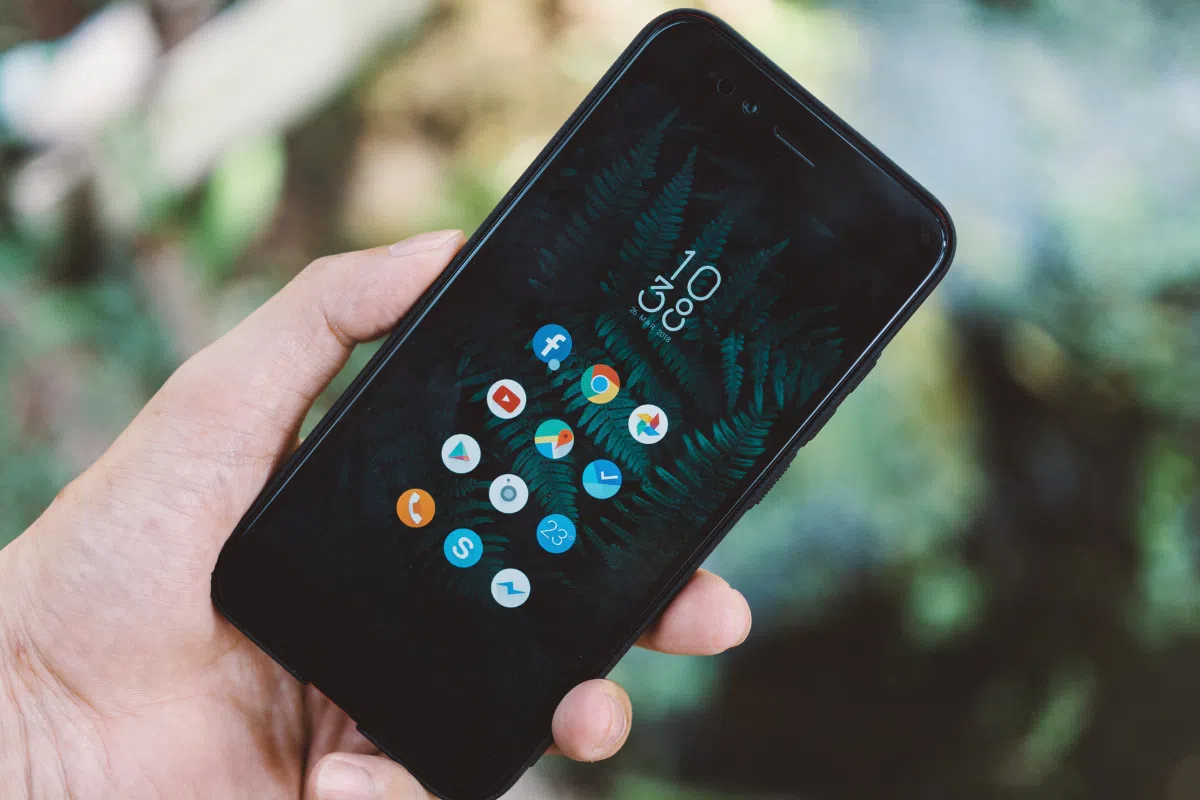
Have you ever wondered how far you can go in customizing your Android phone? These days, this operating system offers enormous freedom to transform its appearance, from wallpapers and icons to sounds, notifications, and the overall home screen organization. Whether you prefer a minimalist aesthetic or a striking, unique style, there are countless options to personalize your phone and adapt it to your personality or needs. Customization goes far beyond simply changing a background photo: it affects how you interact with your phone, ease of use, performance, and even privacy, so it's worth familiarizing yourself with both the native options and the most reliable third-party tools.
Android is constantly evolving to offer new customization features, especially in its latest versions. However, the greatest universe of possibilities lies in the apps you can download from the Play Store and other trusted app stores. Some allow for deep system changes, others focus on specific elements like widgets, icons, or themes, and many combine several options in one place. In this article, we'll review all the best tips, settings, and apps to get the most out of customizing your Android phone, from the basics to advanced options.
Native customization options in Android 15 and other layers

Before installing third-party apps, it's important to understand the customization options that come standard with Android , especially since Android 12 and with the arrival of Android 15, which brought new ways to personalize the system. These features are typically found on Google Pixel phones and, with variations, on models from Samsung, Xiaomi, Realme, Oppo, Huawei, and other manufacturers. The first place to look is usually the settings menu, but you'll also find quick access options by long-pressing the home screen or swiping down the notification panel.
Dark mode and light mode are two of the most noticeable changes. They not only give the interface a different look, but also affect energy consumption and eye strain. You can activate them from Display and touch settings and schedule them to switch automatically depending on the time of day. On many phones, the option appears as Dark Theme within Display; on others, it's integrated into Styles and Wallpapers. If your Android skin doesn't allow scheduling, you can use automation apps or switch manually at sunset.
Within Wallpaper and style , Android lets you choose backgrounds for both your home and lock screens, using your own images, system-suggested backgrounds, or even combinations made with emojis. You can also customize the clock design on the lock screen , add shortcuts, and display different elements, such as notifications or custom messages. To change the background, you have two common methods: go to Settings > Display > Styles and wallpapers, or press and hold an empty space on the home screen and select the background option. Then you can decide whether the image is applied only to the home screen, only to the lock screen, or to both screens.
A major advancement in customization is the ability to adapt the interface colors to your chosen wallpaper , generating automatic color palettes and allowing manual modifications if you prefer. This way, you can achieve an aesthetic perfectly suited to your tastes. Regarding icons, there's the option of themed icons , which adapt their color to the interface's color scheme, unifying its appearance. Furthermore, you can define the desktop grid , changing the number and size of the icons, and rearranging them as you wish.
The system also lets you manage which apps appear on the home screen , easily add or remove icons, and decide whether newly installed apps are automatically placed on the home screen or only in the app drawer. Many manufacturers add extra options, such as hiding apps, creating folders, locking the home screen layout, or choosing whether the app drawer displays all apps or only some.
More things to customize
Sound and vibration are also customizable. You can choose ringtones, notification sounds, and alarms, as well as the intensity and type of vibration, all from the Sound and Vibration section . On some phones, you may need to expand the Advanced menu to see all the options. You can also add your own sound files, although the method varies depending on the manufacturer; a simple alternative is to use third-party apps or assign tones from applications like WhatsApp, which have their own notification settings. You can even set music from Spotify or YouTube Music as your alarm if your phone allows it.
For those seeking a more comfortable experience, Android allows you to adjust the text size, screen elements, and keyboard . So, if you have visual difficulties or simply prefer larger fonts, you can adjust these settings in Display & touch settings and On-screen keyboard . Switching to a more advanced keyboard, such as Gboard or SwiftKey, also adds extra features and new customization options. Keyboards are installed like any other app, and after configuring them, you can switch between them in Settings > System > Languages & input > On-screen keyboard.
Regarding notifications, you have complete control over which apps can send them, the type of notifications, the history, notification bubbles, and, if you wish, you can use the flash as a visual indicator of pending alerts. You can also customize the control panel by pressing and holding the pencil icon or the edit button, making it easy to organize or add shortcuts as needed. The status bar and quick settings can be rearranged by dragging the icons to the top.
If your manufacturer allows it, you can also change the system font from the Display settings or the theme store. Some models include their own fonts; if yours doesn't, apps like iFont, HiFont, or GxFonts can help, and some launchers like Nova Launcher, Action Launcher, or Apex Launcher allow you to apply fonts within their own environment. Keep in mind that these changes may not affect all applications.
Why install third-party customization apps?

The native options are great, but if you're really looking for a radical change or to fully exploit Android's potential, third-party customization apps are essential . Thanks to these apps, you can change launchers, icons, themes, sounds, live wallpapers, widgets , and even mimic the look of other systems like iOS . Furthermore, many allow you to create your own designs by combining elements: a specific background, an icon pack, custom widgets, and a cohesive color palette.
However, caution is advised: installing customization apps can carry certain risks . Some require advanced permissions that can compromise your privacy if you choose unreliable apps. Theme stores from some manufacturers or Google Play are the safest environment, but if you opt for lesser-known apps, check their ratings and reviews before installing. It's also advisable to check if the app is frequently updated and if it clearly explains why it needs each permission.
Best launchers to customize your Android in depth

One of the most popular ways Android users personalize their phones is by installing a new launcher . Here are some of the most highly recommended, each with unique features that make it stand out. Installing a launcher doesn't require root access: simply download it like any other app, and when you press the home button, the system will ask which launcher you want to use; select the new one and choose "Always" to set it as the default.
- Nova LauncherThis classic app remains one of the most downloaded and highly rated. It allows you to change the icon grid, themes, margins, widgets, shadows, and much more, providing enormous flexibility to achieve your desired experience. Its performance is outstanding, and it's constantly updated. It also allows you to adjust gestures, hide apps, and customize the app drawer.
- AI Launcher: Forget conventional icons and opt for a straightforward information dashboard, with data like battery, calls, messages, and text widgets. It's ideal for those looking for something different and functionalwith a focus on productivity and quick access to information.
- Go Launcher EXWell-known for its combination of elegant design and powerful features, it organizes the menu and automatically categorizes apps. It includes a task manager and a large collection of ready-to-use themes, as well as transition effects and drawer customization options.
- Evie Launcher: It stands out for its optimization, speed and compatibility with older mobile phones It has been available since much earlier versions of Android. Its strength lies in its fluidity and the customization of icon packs, although it doesn't allow for too many individual icon modifications.
- Smart Launcher 6Lightweight and efficient, it organizes apps by category and allows you to place the desktop in landscape mode, ideal for foldable devices. You can change the shape of icons and manage pending notifications from a centralized panel.
- Niagara LauncherIt features a minimalist design and vertical navigation, perfect for one-handed use. The free version already has plenty of options, but the Pro version unlocks even more customization, such as integrated widgets and advanced settings.
- IOS 16 LauncherIf you like the look of iPhones, this app lets you get it on your Android: Apple-style icons, widgets, dark mode, the famous app library, and an aesthetic experience very similar to iOS.
Other popular launchers worth trying include Action Launcher , Apex Launcher , Microsoft Launcher , and ADW Launcher . Many of them allow you to change icons and fonts, apply themes, and adjust gestures. However, icon or font changes made from within a launcher are usually only visible within that launcher, not in system menus or the recent apps view.


You should know that changing the launcher involves granting advanced permissions , as it will control your phone's core interface. Make sure to choose reputable options and, if possible, open-source ones for greater security. If something goes wrong, you can always revert to the native launcher from Settings > Apps > Default apps > Home.
Essential apps for visual customization

Besides launchers, there are other essential apps for modifying the visual appearance of your Android device : accessibility and icon customization are key aspects for achieving a unique and functional phone. Some focus on widgets, others on complete themes, and still others on wallpapers, sounds, or icon packs.
- Kustom Widget Maker (KWGT): If you want to create completely custom widgetsThis app is perfect. You can design widgets from scratch, customize templates, add real-time information (like weather, calendar, or battery level), and place them wherever you like on your home screen. It's a modular tool that requires some practice, but it offers tremendous control.
- ThemeKit: Best for those looking to change the entire interface with a single tap. Offers complete themes with exclusive icons and widgets For all tastes (from casual themes to holidays, movies, or sports). Just download the theme you like best and apply it easily.
- ZEDGE: It is the best known app to obtain wallpapers, ringtones and notification soundsIts catalog is almost endless, from artistic and thematic styles to popular ringtones from TV shows, movies, and memes. Plus, it's very easy to use.
- Widget: Aesthetic WidgetsThis app is designed to create aesthetic and personalized widgets for your home screen. It allows you to add photo widgets, use a color widget maker, quotes of the day, weather and clock styles, a calendar, a day counter, notes, a countdown timer, contacts, and battery information. It offers over 1000 widget styles, options to customize colors, fonts, styles, and backgrounds, a widget editor, and the ability to place multiple photo widgets on your home screen. Its interface is simple and allows you to create eye-catching designs without complications.
- Themebox – App icons & WidgetsIt brings together over 1000 themes, aesthetic backgrounds, stylish widgets, and custom icon packs. It allows you to mix and match icons, widget colors, wallpapers, battery styles with emojis, charging backgrounds, and a smart control center. It includes aesthetic, anime, pastel, vintage, minimalist, neon, and sports themes; battery, calendar, weather, photo, and control panel widgets; and an icon changer with custom fonts, colors, transparency, backgrounds, and names. It also adds island stickers and flip backgrounds for even more desktop personalization.
- Inspired for KLWPKustom Live Wallpaper offers a sophisticated and refined design, ideal if you're looking for a desktop with an elegant and distinctive look. It's a paid option within the KLWP ecosystem.
- Good Morning Pro Alarm ClockA smart alarm that analyzes your sleep stages and finds the lightest moment to wake you up within a set interval. It uses your phone's accelerometer to detect movement and provides a more natural wake-up.
- Classic icon packsMinimale Vintage Icon Pack, Pixelicious Icon Pack, CM13/12.X Precious Dark, Noizy Icons, Gold Icons Pro, Pixel Nougat UI, and Ango Icon Pack are paid or free alternatives for completely changing the style of your icons. They offer vintage, colorful, dark, video game-inspired, gold, and retro styles.
- Bass Booster and Equalizer ProA ten-band equalizer lets you customize the player's sound, modify the audio quality and type, and tailor it to your preferences. This is useful if you want the sound experience to be part of your personalization.
- Chronus and Battery RebornOther established apps for creating widgets for information, battery, weather, or calendar. They are usually modular, and some advanced features require purchasing the full version.


If you want to take customization even further, there are apps like Themes – Wallpapers & Widgets that bring together tools for changing icons, HD backgrounds, complete themes, widgets, and much more, all in one place. This app stands out for its catalog of over 1.000 themes, more than 500 HD backgrounds, and a wide variety of aesthetic styles that are updated weekly.
Some interesting features of these comprehensive apps include the ability to create custom combinations by mixing and matching lock screen styles, widgets, icons, fonts, and wallpapers. They also allow for quick, one-tap setup to customize your home screen and make it easy to import icons from your gallery or external packs. Many include step-by-step instructions for applying each element and managing both your home and lock screens.
Sound customization: ringtones, notifications and alarms
Visual appearance isn't the only thing that matters; sound is a fundamental part of your phone's personality. ZEDGE leads the way in this area, making it easy to find and apply original ringtones for calls, alarms, and messages . Choose from popular music, nature sounds, sound effects, or clips from TV shows and video games. Everything is managed through a clean and visually appealing interface.
The system options also allow you to adjust the vibration intensity and notification sound directly from the settings, an essential feature for those who want their phone to truly sound their way. In Settings > Sound and vibration, you'll usually find sections for ringtone, notification sound, alarm, and vibration; if you don't see all the options, expand the Advanced menu. To add your own sounds, some manufacturers allow you to select files from storage, while others require copying them to specific folders or using specialized apps. You can also assign different ringtones to specific contacts and configure custom sounds in messaging apps like WhatsApp.
If you like more precise audio control, Bass Booster and Equalizer Pro and other equalizer apps let you adjust bass, treble, and sound profiles. Use them sparingly to avoid straining your speakers or headphones. And remember, you can also personalize your alarm: in addition to system tones, some phones let you use music from Spotify or YouTube Music as your alarm.
Wallpapers, animated and 3D: tips and best resources

The choice of wallpaper is another major differentiator. Android lets you use your own photos, download images from the internet, and use dynamic backgrounds that change throughout the day or react to movement. Specialized apps like ZEDGE or Themes – Wallpapers & Widgets have collections for all tastes: from anime and landscapes to minimalist and festive styles, and even 3D animations.
In addition to apps, you can find wallpapers from sources like Bing Wallpapers , Google Wallpapers , or Reddit communities dedicated to vertical and AMOLED backgrounds. These dark wallpapers help save battery on OLED screens and often pair well with minimalist interfaces. If you're looking for maximum originality, many apps allow you to create your own wallpapers using editing tools or by combining different images. Don't underestimate the power of a good wallpaper: it can make the difference between a standard phone and a unique and attractive one.
The latest options also include charging backgrounds, animations when you plug in the charger, flip backgrounds, island stickers, and 3D effects. Themebox, for example, lets you apply charging backgrounds and battery styles with emojis to add a fun touch to your screen while your phone is charging. However, animated backgrounds consume more resources, so use them sparingly if you notice your battery draining faster.
Customize your lock screen: shortcuts, widgets, and messages

The lock screen is the first thing you see when you turn on your phone, and Android offers some interesting options. You can customize the clock style, background, visibility of notifications and security messages, and add custom shortcuts (for example, to the camera, flashlight, or favorite apps). On many phones, you'll find these options in Settings > Lock screen or within Styles and wallpapers.
Some third-party apps even let you add informative widgets or display exclusive themed animations and backgrounds when you lock your device. This adds practicality and a personal touch. If your phone allows it, try changing the clock format, adding the weather, displaying the battery level, or including a custom message. You can also choose whether notifications show sensitive content or just a generic alert for privacy reasons.
Widgets: How to Get the Most Out of Them on Android
Widgets are small windows that display dynamic information. Weather, news, calendar, battery level, and more can be viewed at a glance without opening any apps. With tools like KWGT , you can design custom widgets that combine the color, size, and information most useful to you.
The process is simple: press and hold the background on your home screen, select Widgets, choose one, and place it wherever you like. Compatible apps usually offer several widgets, and you can resize them after adding them. Sometimes you'll need to configure internal widget options, such as the weather city or calendar you want to display. To move them, press and hold and drag; to resize them, use the handles that appear on the edges.
In addition to KWGT, you have Chronus and Battery Reborn for information and battery widgets, Widget: Aesthetic Widgets for aesthetic designs with photo widgets, appointments, weather, clock, calendar, countdown timer, and contacts, and Themebox for color, battery, calendar, weather, photo, and dashboard widgets. Widgets can also be a way to reduce the number of icons on your desktop and create a cleaner screen.
Customizing icons: packs, colors, and shapes
One of the most appreciated changes is the ability to modify the style and color of app icons . Many apps, such as Themes – Wallpapers & Widgets or advanced launchers, allow you to download icon packs that completely transform the appearance of your desktop: from retro, minimalist, and 3D styles to icons inspired by other platforms (like iOS).
Some systems even let you choose the color to match your wallpaper's palette , unifying the device's entire aesthetic. You can combine this with the native option of themed icons for an even more cohesive result. If your manufacturer has a theme store, like Samsung, Xiaomi, Huawei, or Oppo, check their official packs first; they tend to integrate better and don't require extra permissions.
Classic icon packs like Minimale Vintage Icon Pack , Pixelicious Icon Pack , CM13/12.X Precious Dark , Noizy Icons , Gold Icons Pro , Pixel Nougat UI , and Ango Icon Pack offer a wide variety of styles: vintage, colorful, dark, game-inspired, gold, retro, or vibrant. Themebox also includes an icon changer that lets you modify fonts, colors, transparency, backgrounds, and app names to create your own icons. However, changes made from a launcher may not be reflected in other system menus.

Theme Change: Change the overall appearance
If you're looking for a complete makeover, full themes are your best bet. Many mobile phone manufacturers have their own theme stores where you can download styles that change the background, icons, font, sounds, and even system animations. While some are paid, there are countless free options to suit every taste.
Apps like ThemeKit or Themes – Wallpapers & Widgets make these kinds of transformations easy, allowing you to completely change your phone's look in seconds. Themebox adds over 1000 themes with anime, pastel, vintage, minimalist, neon, and sports styles, as well as aesthetic wallpapers and combinable widgets. If you use a custom theme with its own store, compare both options: official themes tend to integrate better, while third-party apps offer more variety.
Customize the grid and desktop: space and organization
The size and arrangement of the icon grid greatly influence the user experience. You can choose whether you prefer large icons with few per screen or many small ones to make the most of the available space. This setting is available in both the native settings and most launchers. This allows you to achieve a clean and organized desktop or, if you prefer, one cluttered and full of shortcuts.
In addition to the grid, you can create folders, hide apps, lock the layout, change the number of rows and columns, adjust margins, and choose between a searchable app drawer or an alphabetical list. Some launchers support two-finger gestures, swipes, and edge-to-edge shortcuts. If you're using a foldable phone, try landscape modes or layouts optimized for larger screens.
Security tips for personalization apps
Customizing your phone is fun, but don't gamble with your privacy . Some apps request excessive permissions and may contain malware, access your data, or spy on your activity. Therefore:
- Download only applications from the Google Play Store or from trusted stores.
- Check ratings and reviews before installing an unfamiliar app.
- Pay attention to the permissions it requests and reject any that don't make sense.
- Avoid installing more apps than necessary to keep your phone safe and lightweight.
- Check if the app explains the use of accessibility or screen overlay; some need it to function, like Themebox with its floating control center, but it should be clear that it does not collect personal data through that API.
- If an app requests access to contacts, calls, or location and it's unrelated to its function, be suspicious.
What should you keep in mind before customizing your Android?
In addition to security recommendations, it's worth considering the compatibility of each app with your Android version and manufacturer's custom interface . Some advanced options may be limited on certain models or require extra steps to function correctly. Before applying a complete theme, back up your important data and note how to revert to the stock launcher.
Don't forget that sometimes, after a major customization change, it can affect your phone's speed, battery consumption, or cause minor visual glitches. If you notice any problems, simply switch apps or revert to the stock launcher to see if the issue disappears. Live wallpapers, overly complex widgets, and apps running in the background are prime suspects when battery life suffers.
Root and custom ROMs: the most advanced level
Another option to further customize your device is to root it . Rooting your phone grants you superuser permissions, which means you'll have the ability to make deeper changes to the operating system. In short, you'll have complete control of the device to do whatever you want with it, always at your own risk.
Rooting your Android device isn't overly difficult, although it might seem that way to someone with little computer experience. It has benefits, such as being able to install custom ROMs or modified versions of the Android operating system, like LineageOS or Paranoid Android. This allows you to have a version of Android that isn't controlled by the manufacturer, but rather by the developer community. This makes it easier to update to newer versions even after the manufacturer has stopped supporting your phone. It also helps you get the most out of your hardware, activate hidden features, and unlock all the customization options.
It also has drawbacks, such as potentially damaging your phone and rendering it unusable if something goes wrong during the process, the installed custom Android version might have bugs and not work as well, or the manufacturer might void the warranty if you experience problems as a result. Therefore, it's not a recommended option for first-time users: Android is becoming increasingly feature-rich out of the box, and many customizations can be achieved without root access.
Official alternatives: manufacturers' customization stores
Samsung (One UI), Xiaomi (MIUI), Oppo, Realme, Huawei, and other manufacturers integrate their own theme stores where you can download or purchase free styles, wallpapers, icons, and even different fonts. These platforms are usually adapted to each customization layer, so integration is typically seamless and performance is optimal. Check if your brand offers this option and explore the possibilities without leaving your familiar environment.
Some manufacturers like LG, Xiaomi, HTC, and Samsung have historically included options to change the font or icons from their own settings. If your phone doesn't have a theme store, check if it at least allows you to change the icon style, shape, or font pack. Otherwise, you can always use a third-party launcher and compatible icon packs.
All-in-one apps: themes, widgets, and more

For those seeking maximum convenience, there are all-in-one apps like Themes – Wallpapers & Widgets , which bring together themes, backgrounds, widgets, and icons in one place. These apps typically offer:
- Catalog of over 1.000 themes and 500 HD backgrounds, including 3D animated backgrounds and seasonal themes.
- Quick and easy customization, with just one touch you can transform the entire look of your system.
- Weekly updates with new styles, trends, and original widgets.
- The option to combine elements: you can select a background, an icon pack, and widgets to create your own custom style.
- Low resource consumption and maximum compatibility with most Android phones.
These apps typically include step-by-step instructions for applying each element and simplify the management of the home and lock screens. Themebox and Widget: Aesthetic Widgets are two other all-in-one alternatives: the former stands out for its themes, customizable icons, loading backgrounds, and control center; the latter focuses on aesthetic widgets with photo widgets, colors, fonts, and configurable styles. If you're looking for convenience, these types of apps save you from having to install ten different tools, although it's advisable to check that they don't request unnecessary permissions.
What risks do external apps pose and how can I avoid them?
The biggest risk of customizing with third-party apps is privacy. Many require permissions to display themselves over other apps, access storage, or send notifications. That's fine, but if an app asks for access to your location, contacts, or calls and it doesn't make sense, it's best to uninstall it. Some may also include intrusive advertising or slow down your phone if they run in the background.
To avoid problems, only download from Google Play or official app stores, read recent reviews, check the privacy policy, and test the app for a few days before configuring too many settings. If you notice strange ads, changes to the lock screen, or unusual battery drain, uninstall it and revert to the stock launcher. Customization should make your phone more your own, not compromise your data or system stability.
In short, Android offers a huge range of customization options, from the most basic to the most advanced: wallpapers, colors, icons, sounds, widgets, lock screens, complete launchers, and global themes. Ideally, you should start with the native settings, try a launcher and one or two trusted apps, and gradually expand according to your needs. This way, you'll create a phone with its own unique identity, comfortable to use, and secure, without sacrificing performance or privacy.
Table of Contents
- 1 Native customization options in Android 15 and other layers
- 2 Why install third-party customization apps?
- 3 Best launchers to customize your Android in depth
- 4 Essential apps for visual customization
- 5 Sound customization: ringtones, notifications and alarms
- 6 Wallpapers, animated and 3D: tips and best resources
- 7 Customize your lock screen: shortcuts, widgets, and messages
- 8 Widgets: How to Get the Most Out of Them on Android
- 9 Customizing icons: packs, colors, and shapes
- 10 Theme Change: Change the overall appearance
- 11 Customize the grid and desktop: space and organization
- 12 Security tips for personalization apps
- 13 What should you keep in mind before customizing your Android?
- 14 Root and custom ROMs: the most advanced level
- 15 Official alternatives: manufacturers' customization stores
- 16 All-in-one apps: themes, widgets, and more
- 17 What risks do external apps pose and how can I avoid them?